Beta testing of the app is out. Early users are accepted. All terms and conditions apply. Get now ›
Clarus Health Desktop for Mac — Adarna
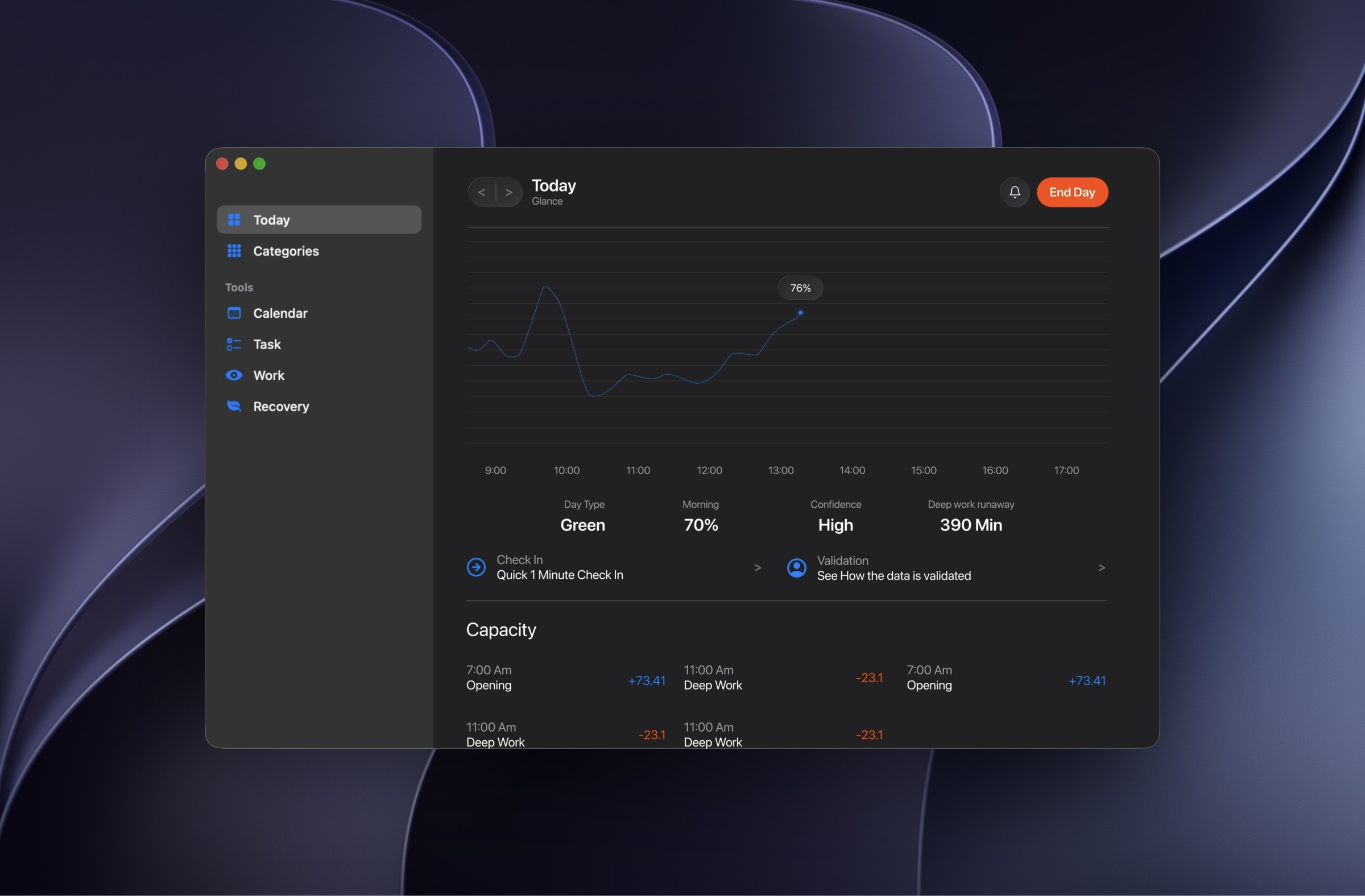
Capacity Score Start each morning with one score from your sleep, band and quick check, updated live all day, so you always know what you have left.
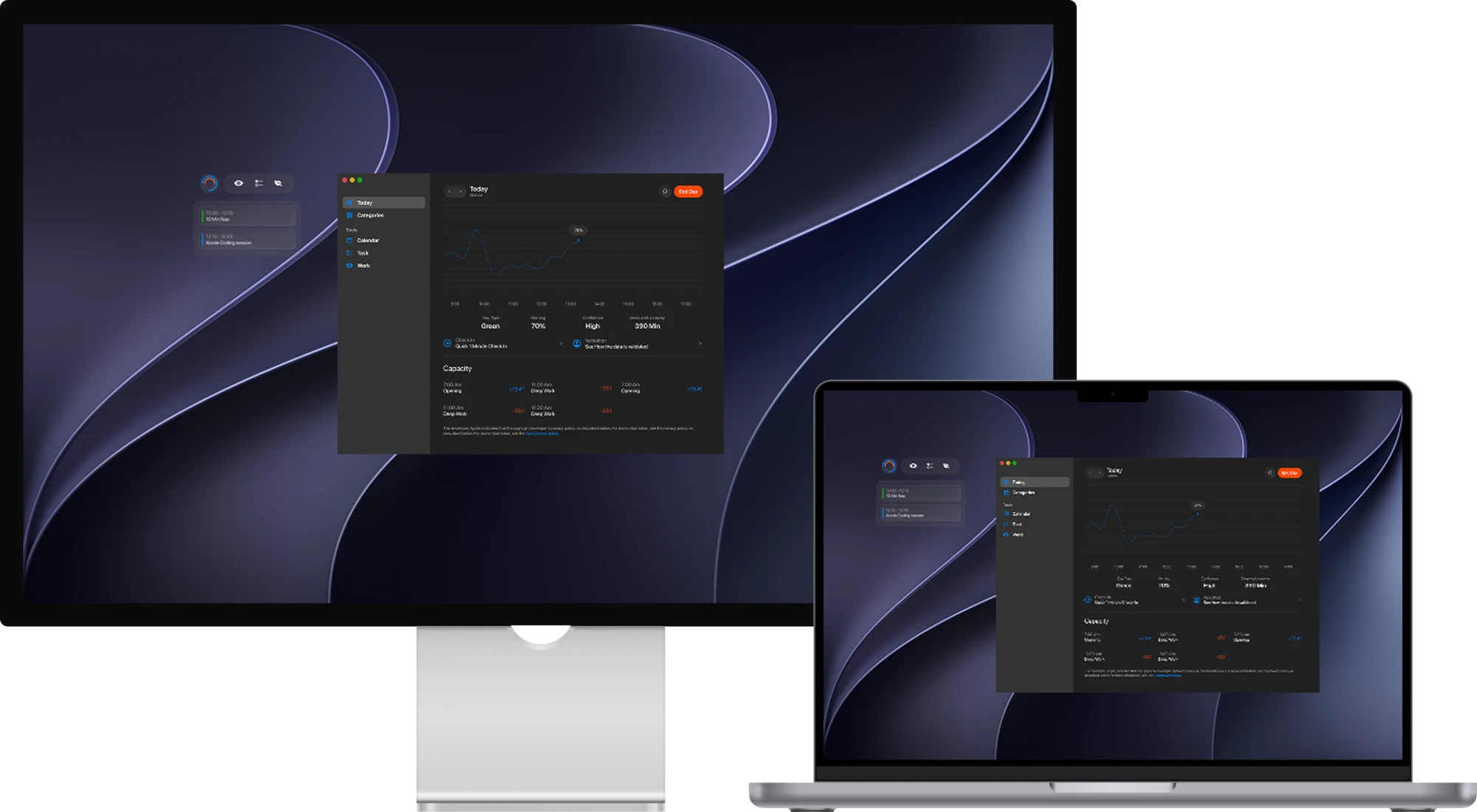
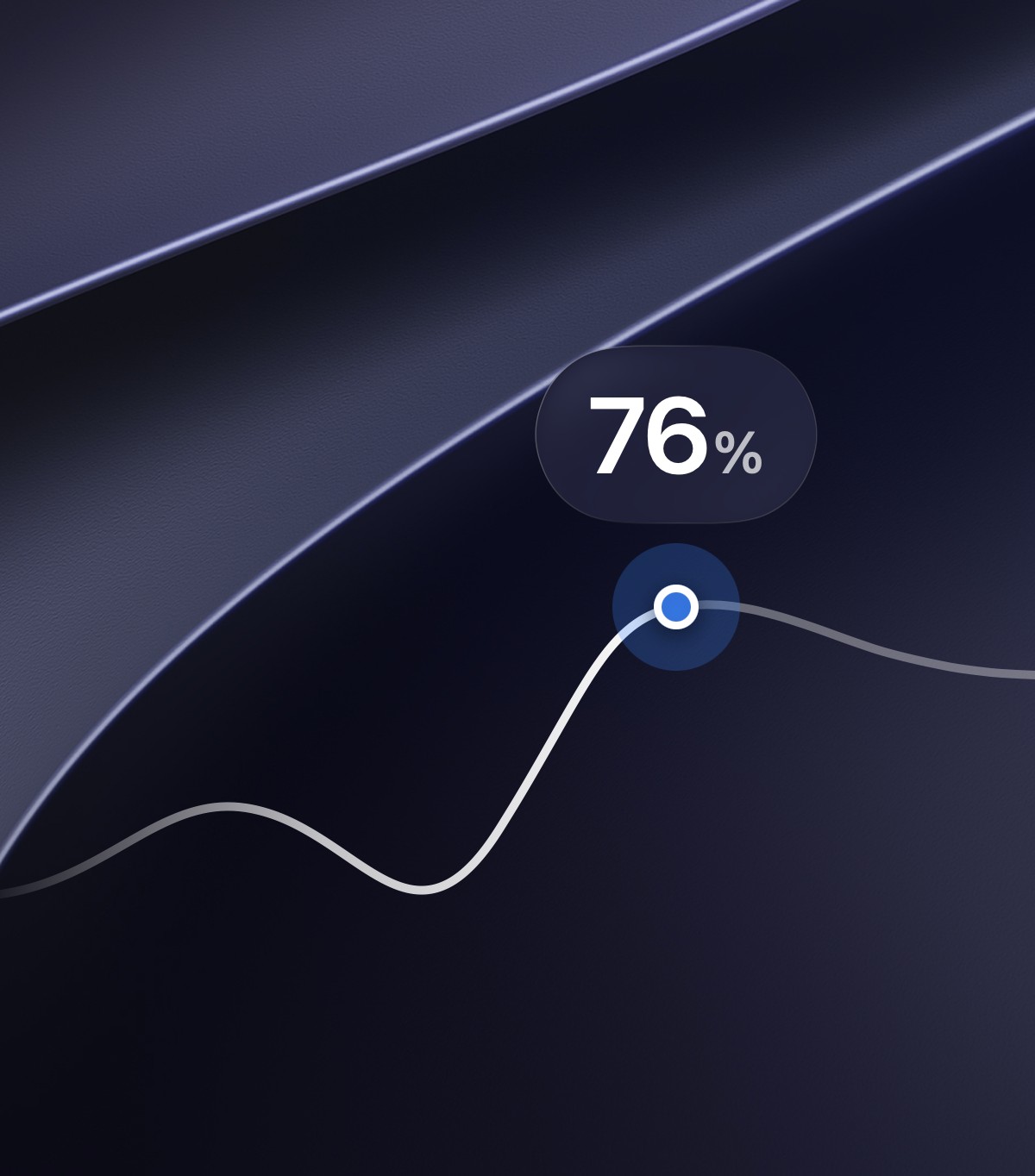
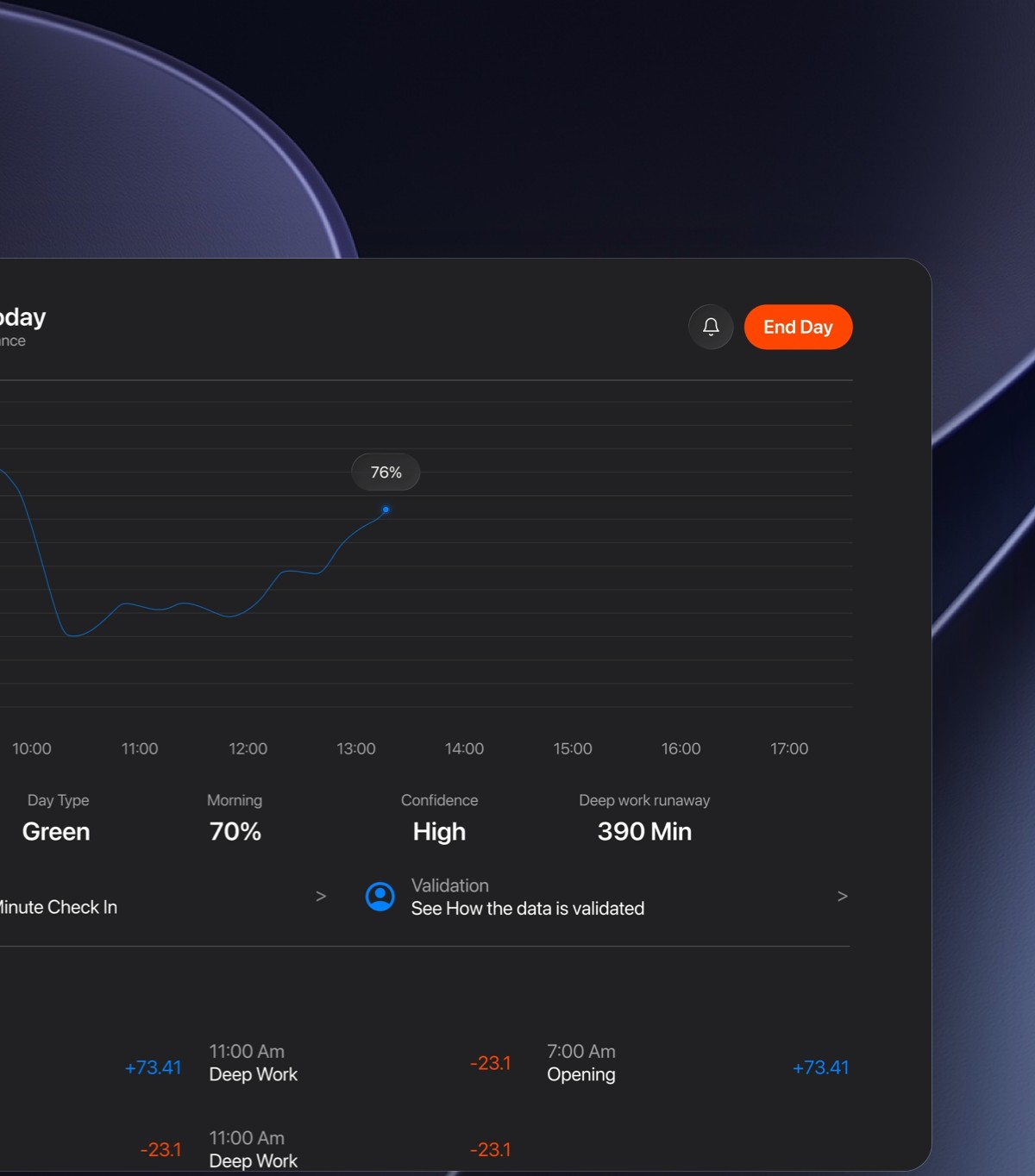
Live Capacity Chart Watch your capacity rise and fall across the day, with a live dot for right now and a gentle line showing where you're heading.
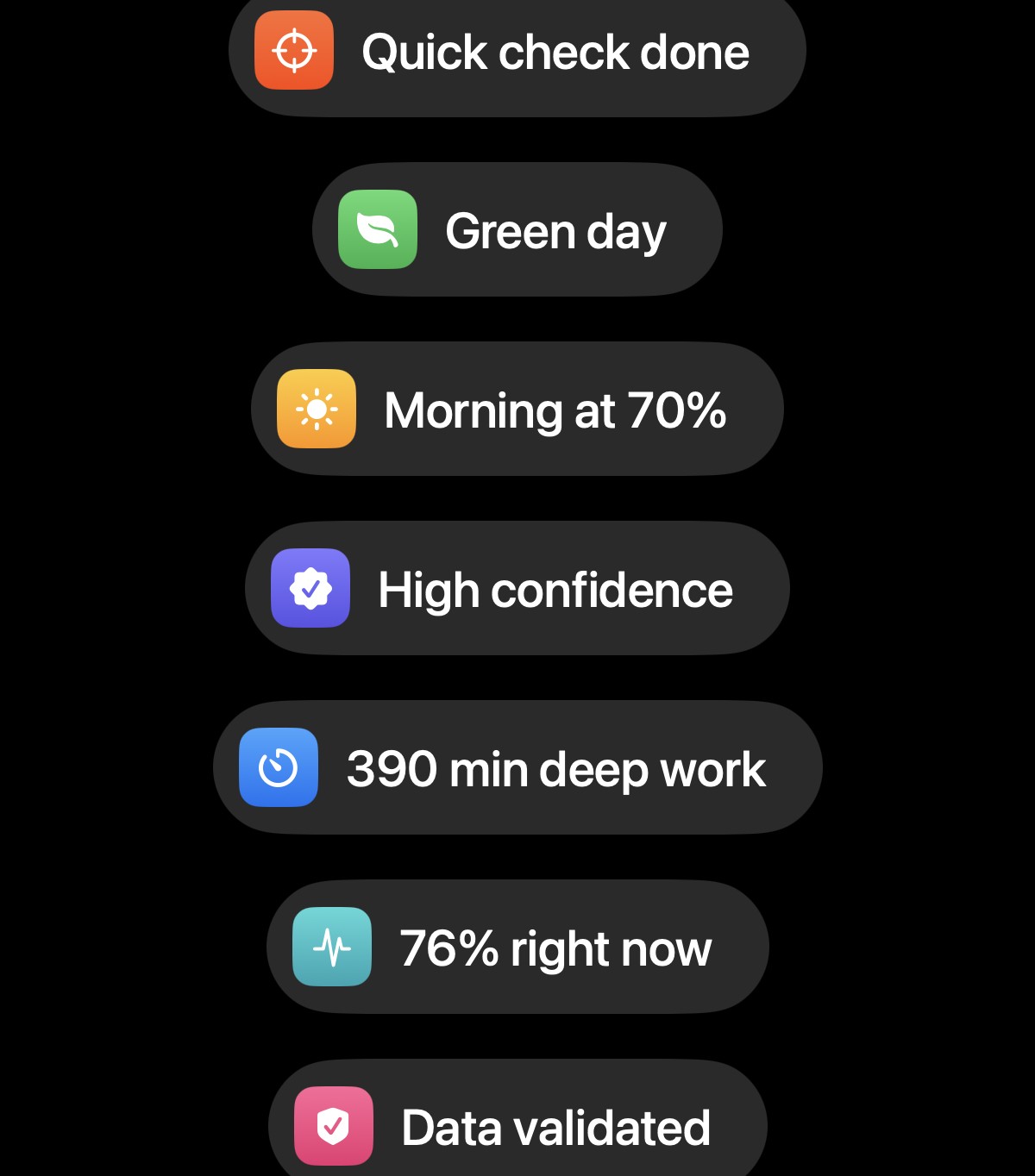
Day at a Glance See your day type, morning score, confidence and deep-work runway at a glance, so you know how much hard thinking today can hold.
Thinking Scores Focus, attention, memory and thinking, each measured against your own normal, with what raised or lowered every score shown right beside it.
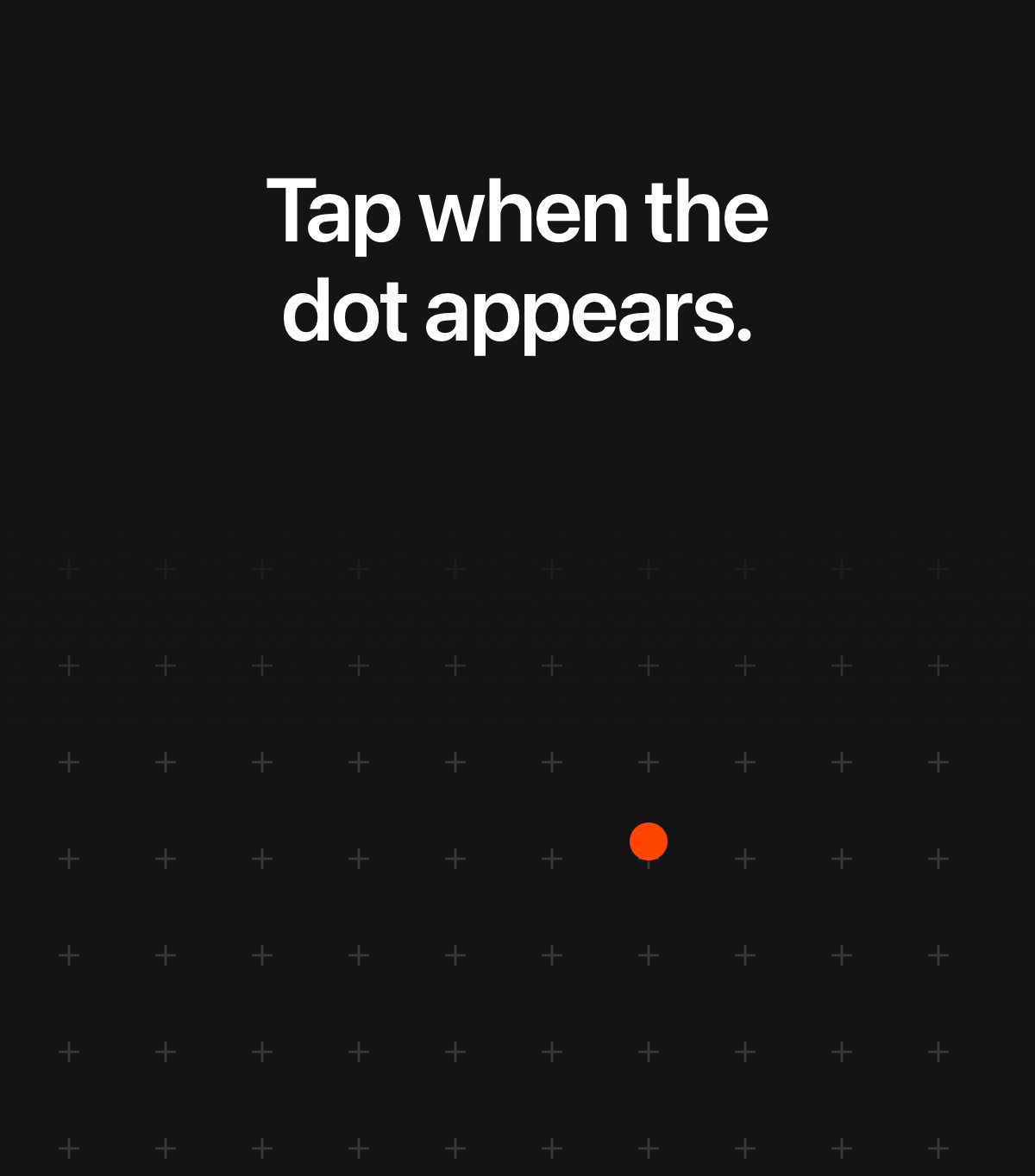
Quick Check-In A short check on your Mac before deep work: tap when the dot appears, and get a measured read of your sharpness, not a guess.
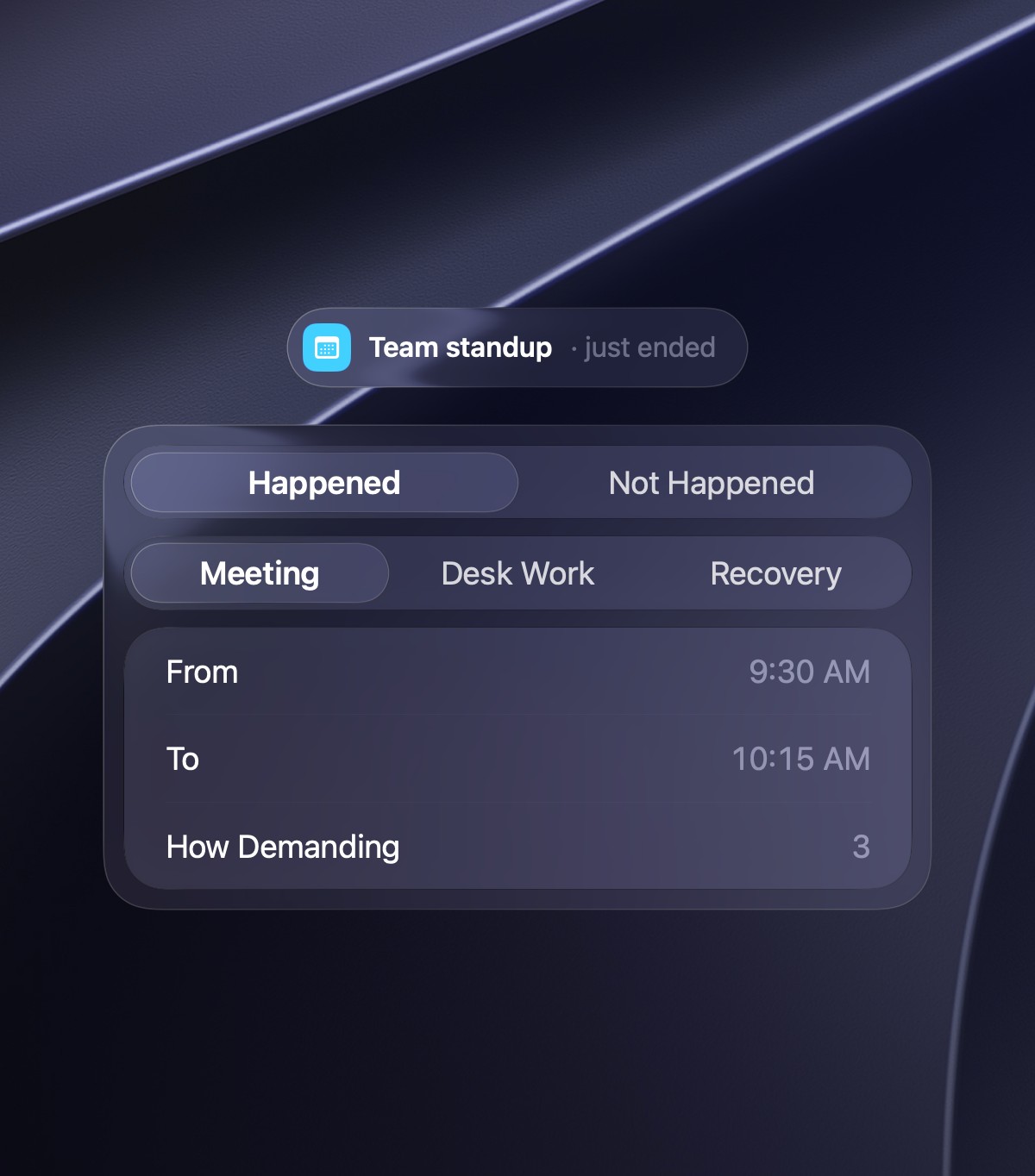
Calendar Review When a calendar event ends unrecorded, Clarus asks what happened in one quick pop-up, so your capacity stays true to your real day.
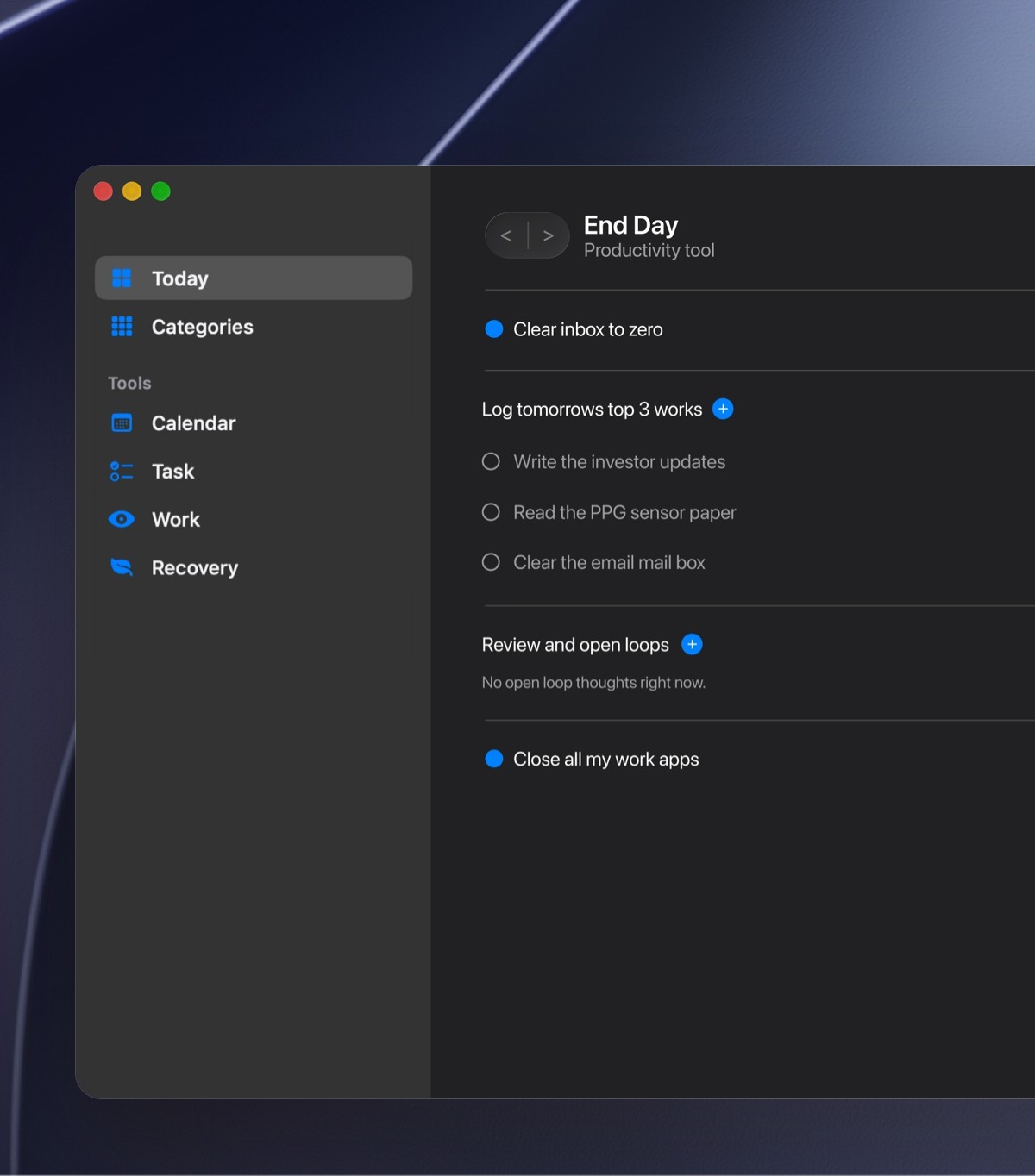
End Day Tick off a short checklist, park open loops, set tomorrow's top tasks and rate your day, so you switch off and your evening is yours.
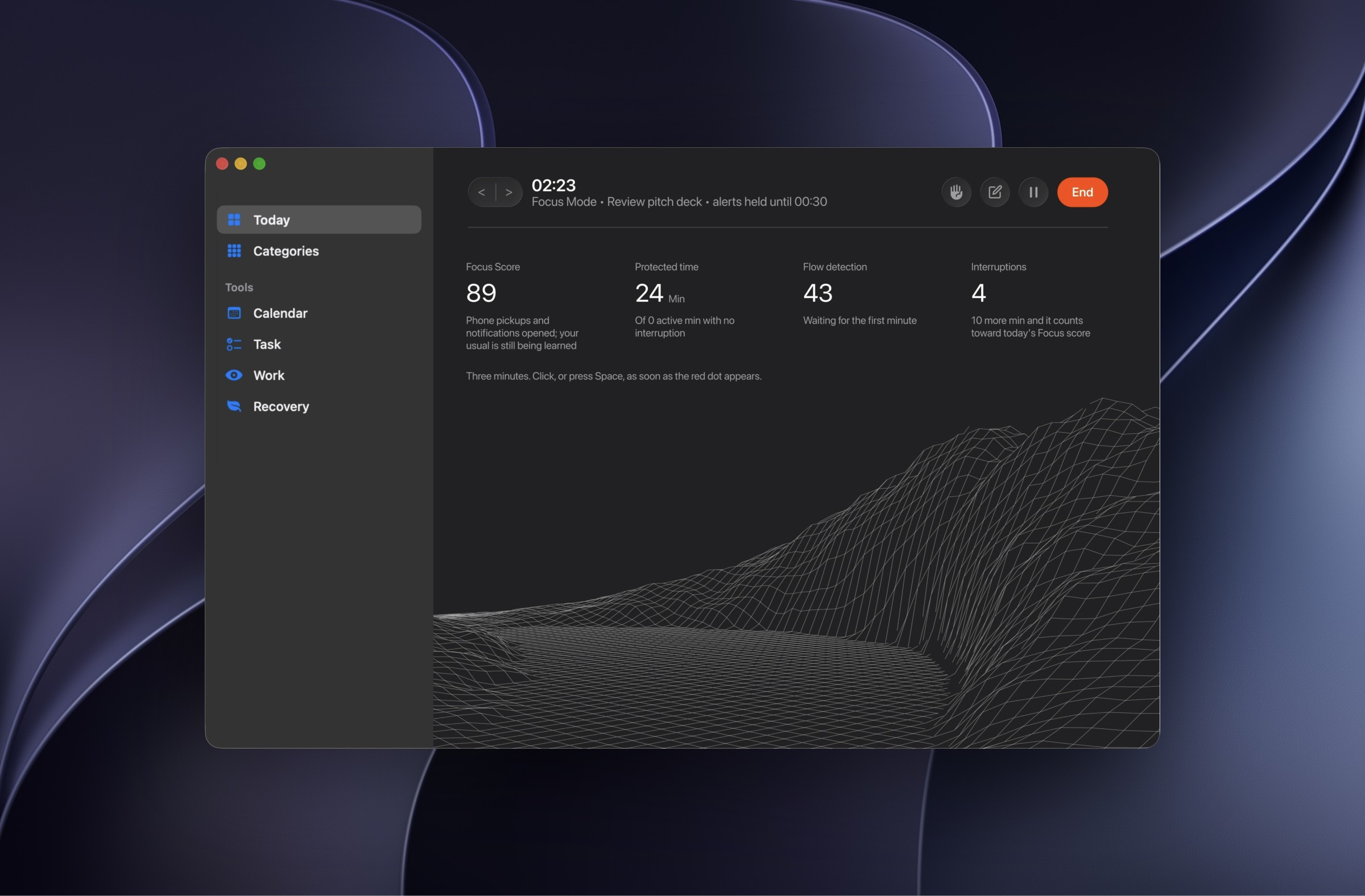
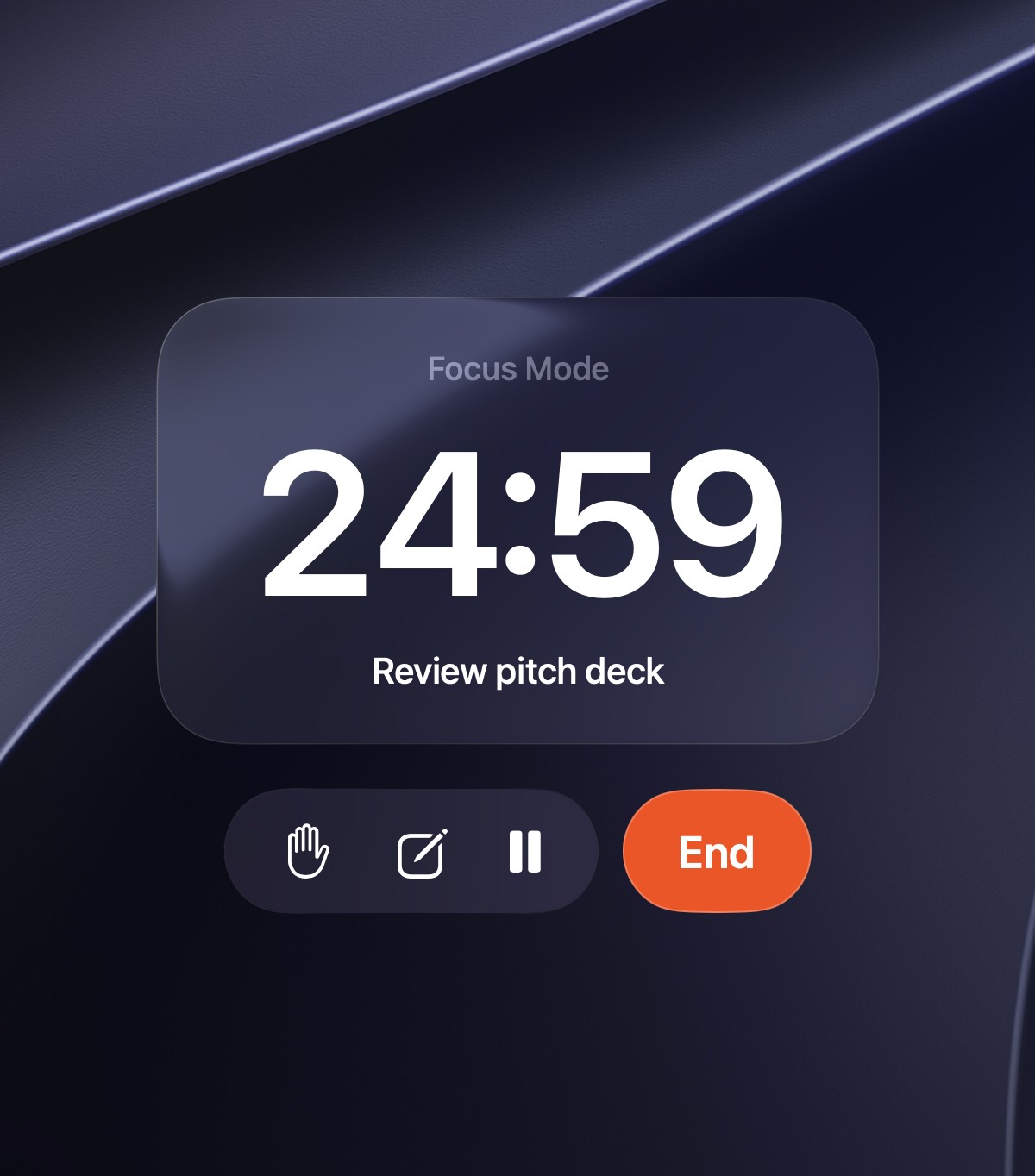
Focus Mode Choose Flowtime or a timer, a soundscape and breaks, and let Clarus guide the block, so every focused minute counts toward your day.
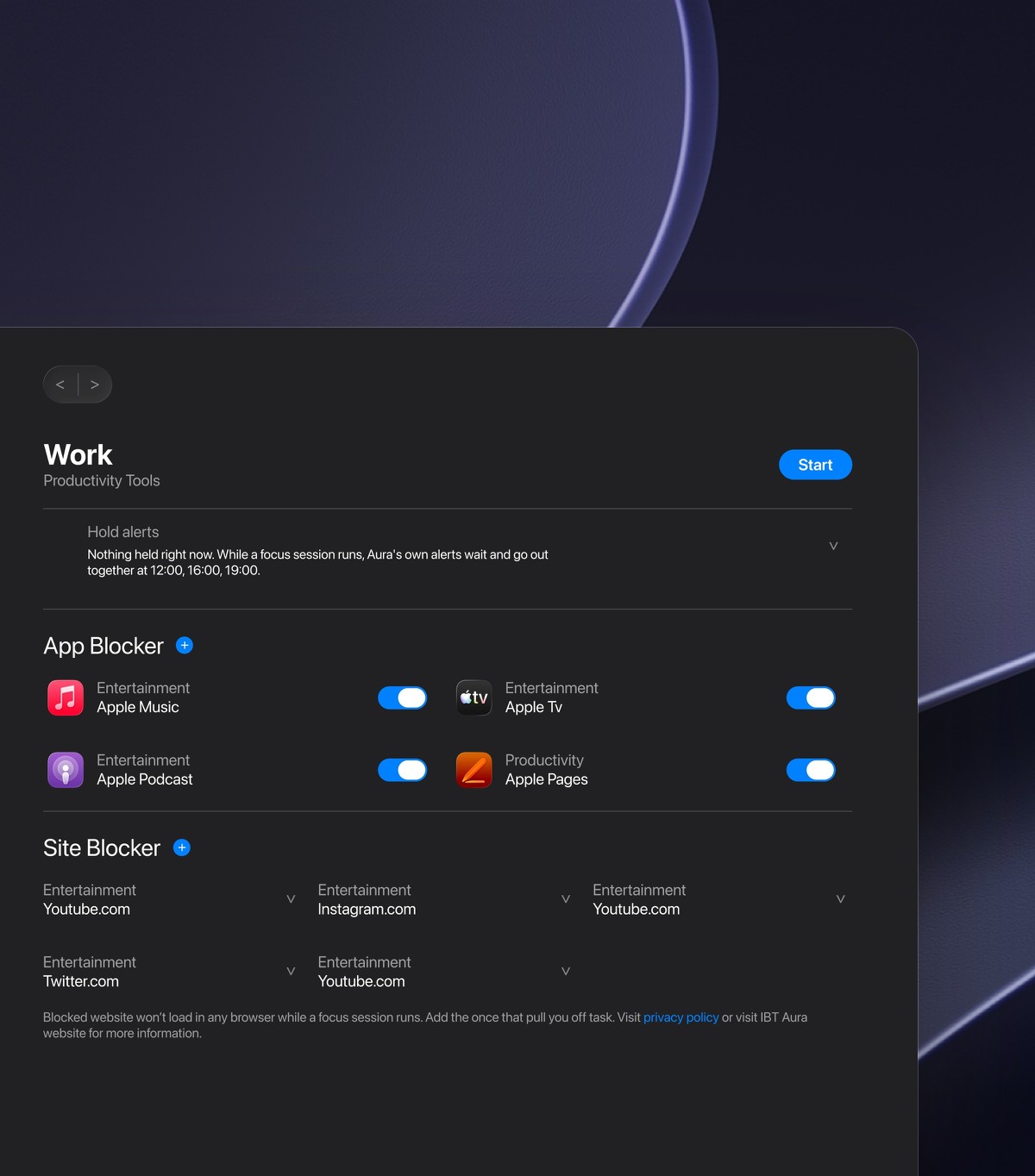
Distraction Shield Block distracting apps and sites, hold notifications in a few batches and quiet Slack, while the people you choose can still reach you.
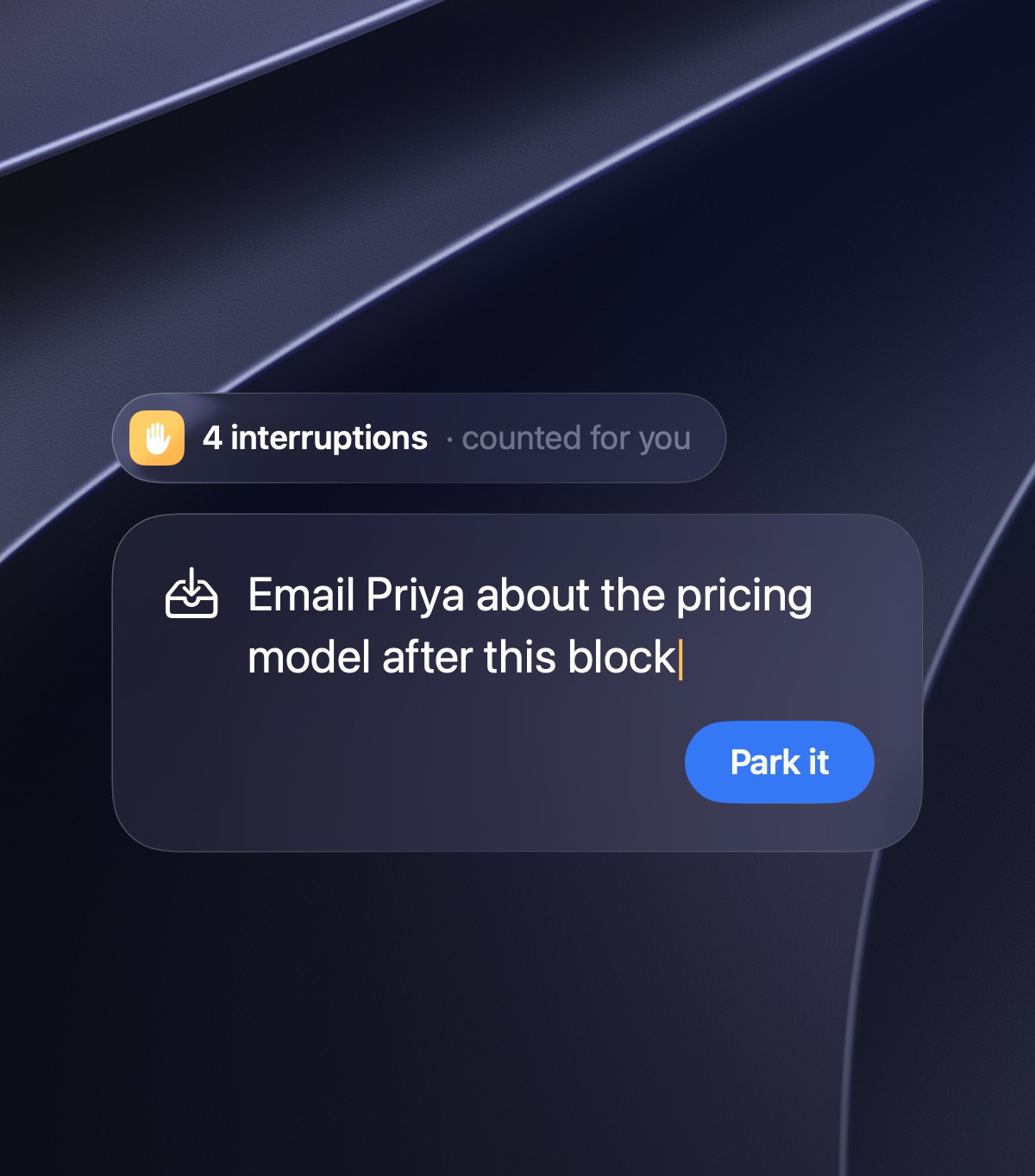
Interruptions & Park It Clarus counts every interruption on its own, and one click parks a stray thought for later, so you get straight back to work.
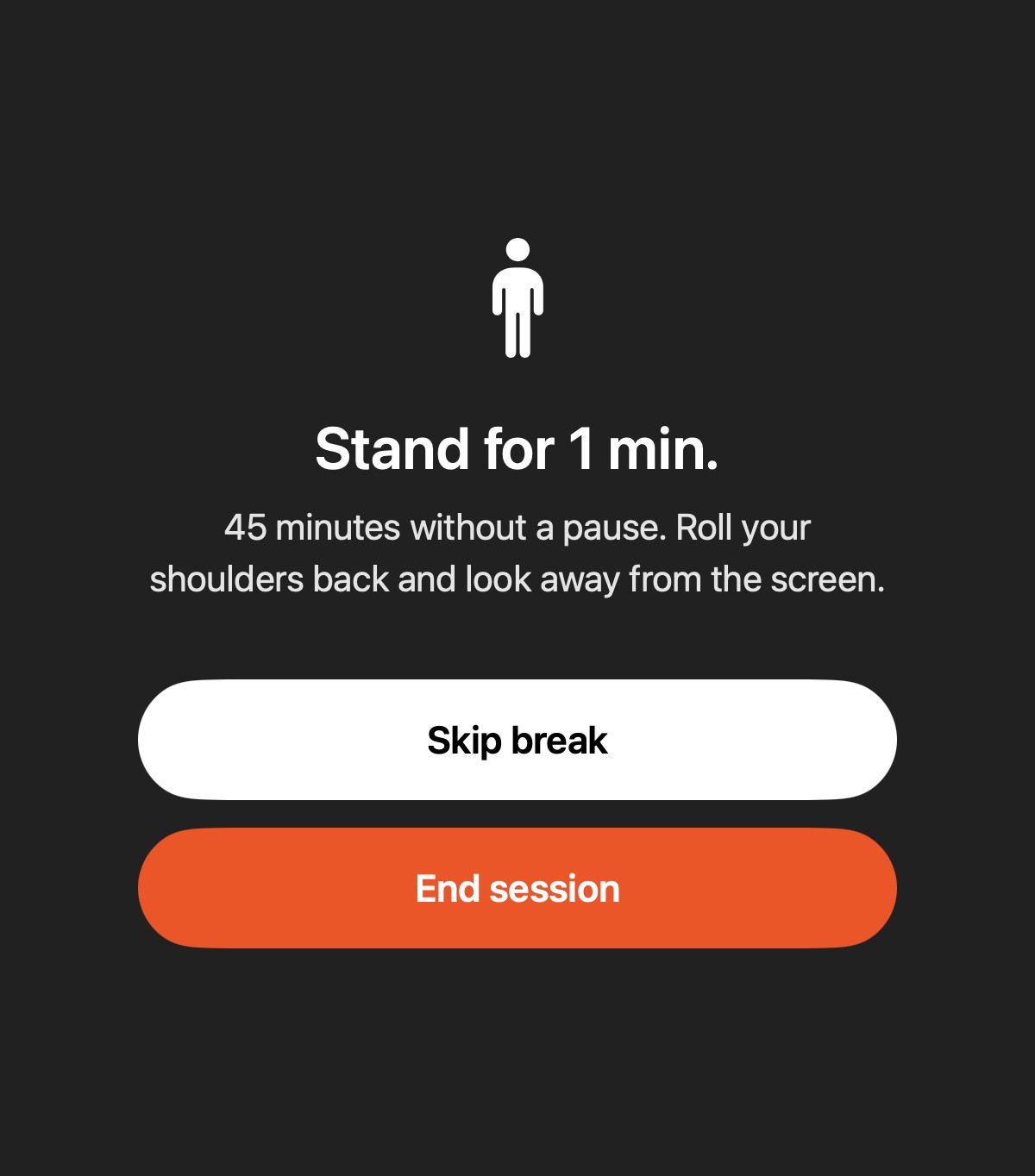
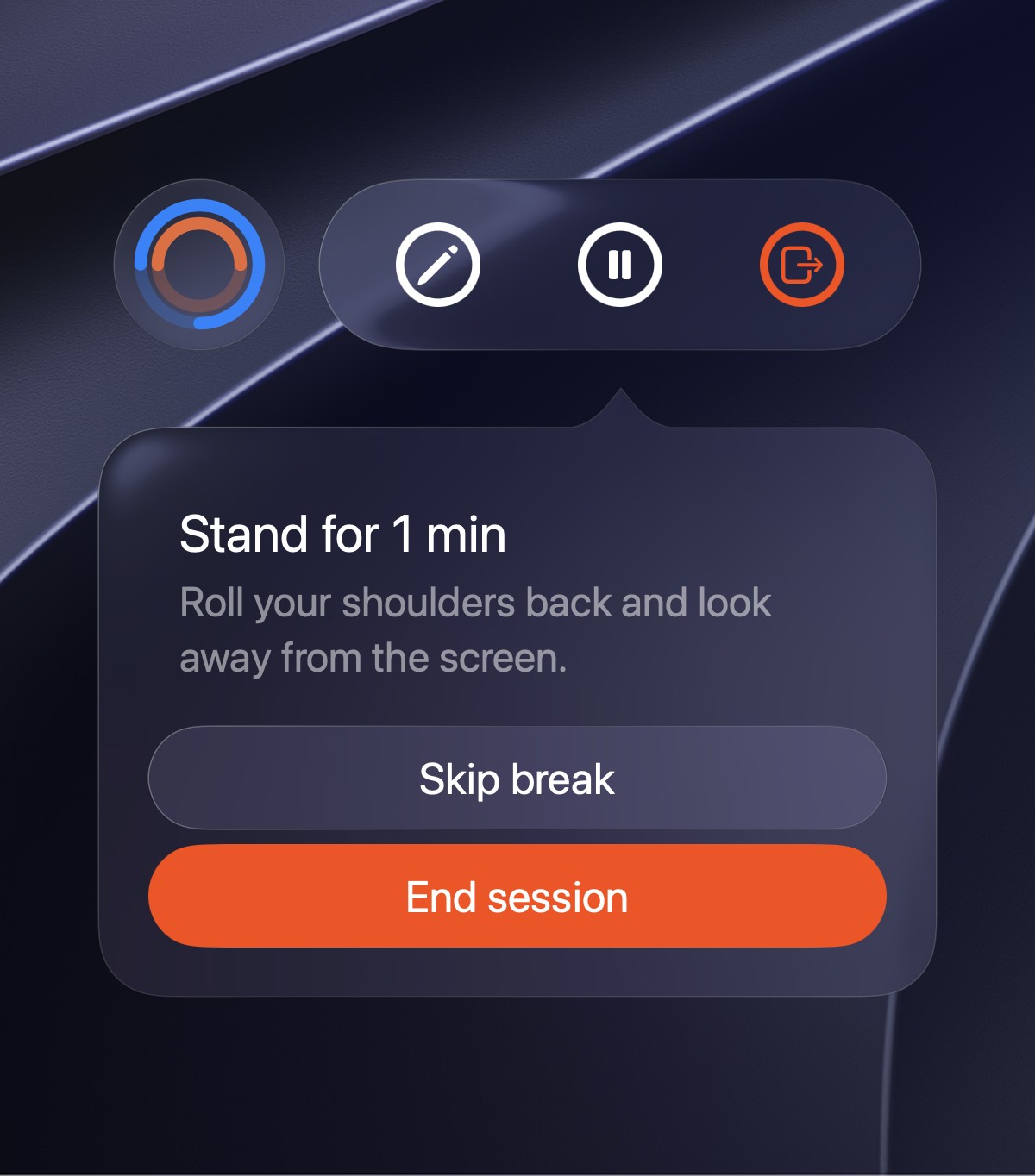
Breaks for Energy After about 45 minutes of steady work, Clarus suggests a short stand or stretch, so you keep your energy up through long days.
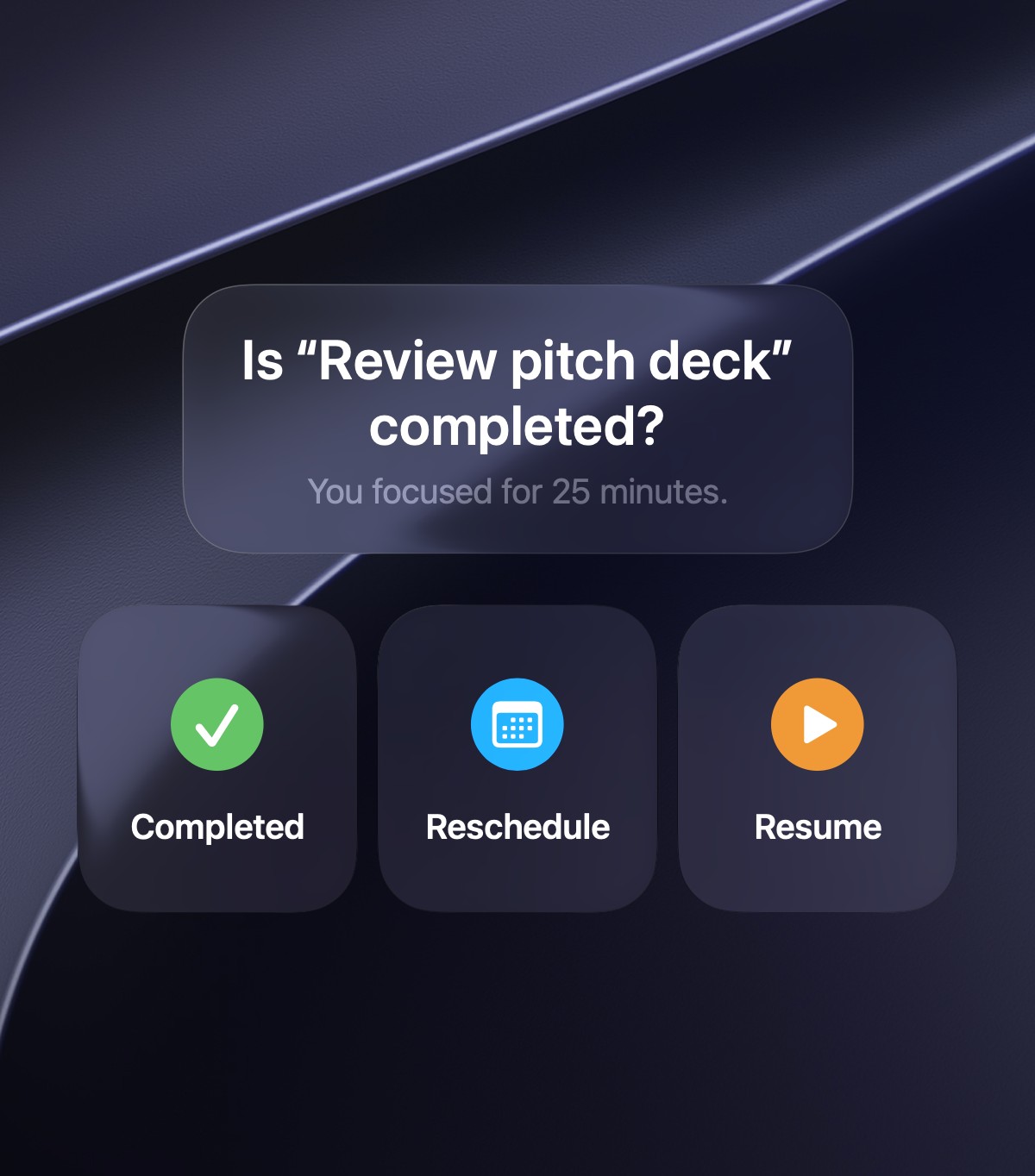
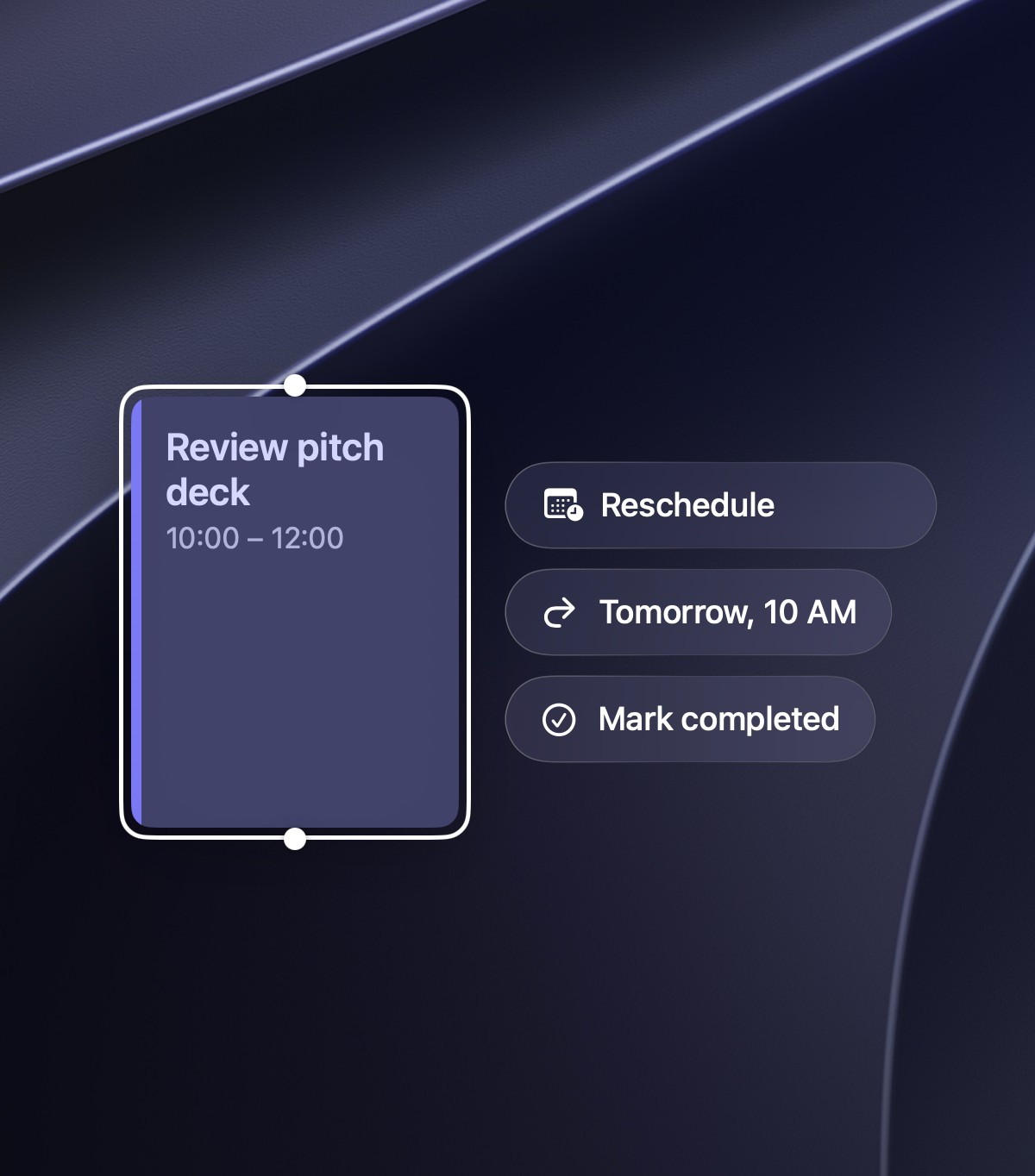
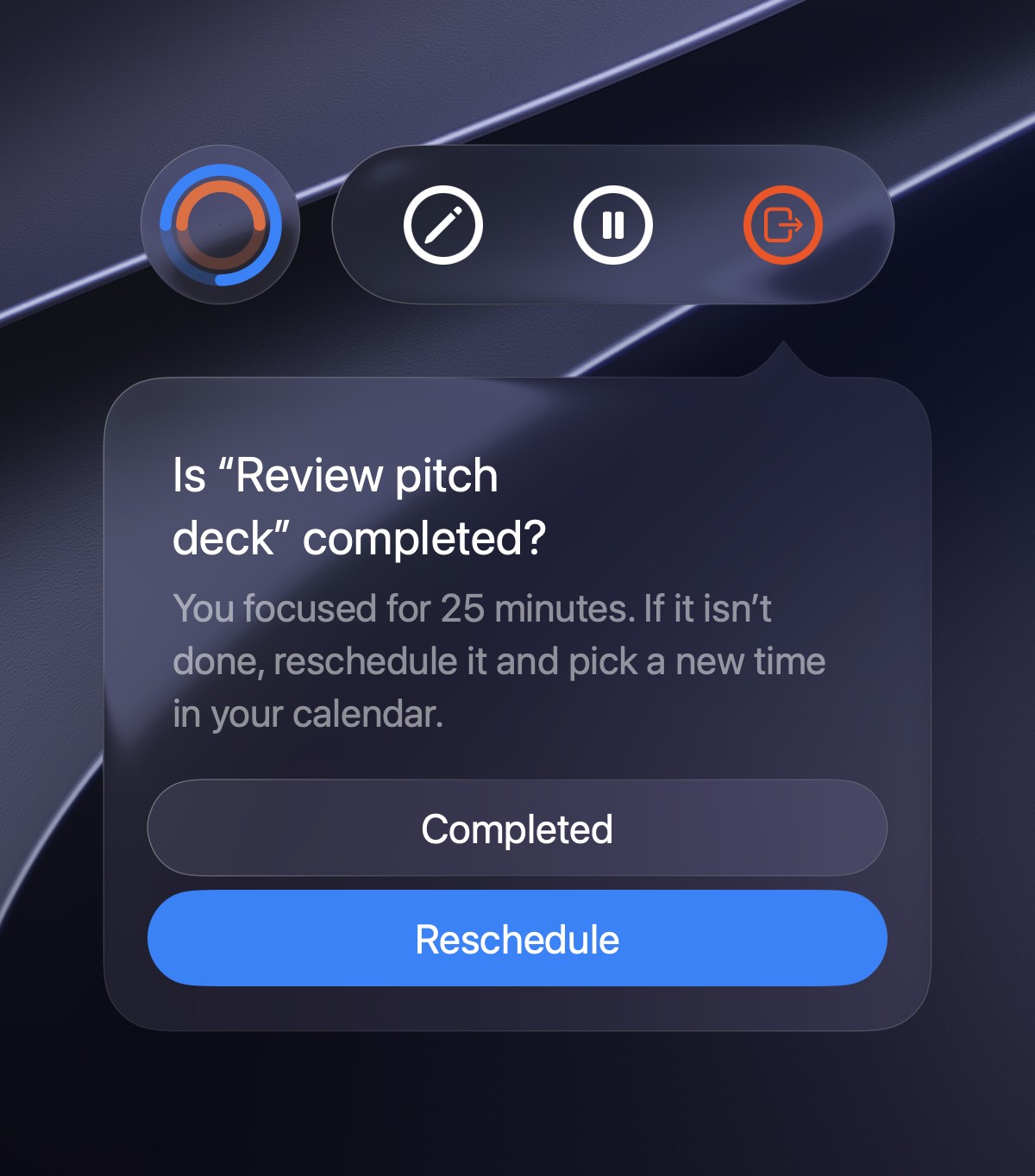
Completed or Reschedule When a block ends, mark it done or reschedule it in one tap, and Clarus finds the next free slot that still fits your day.
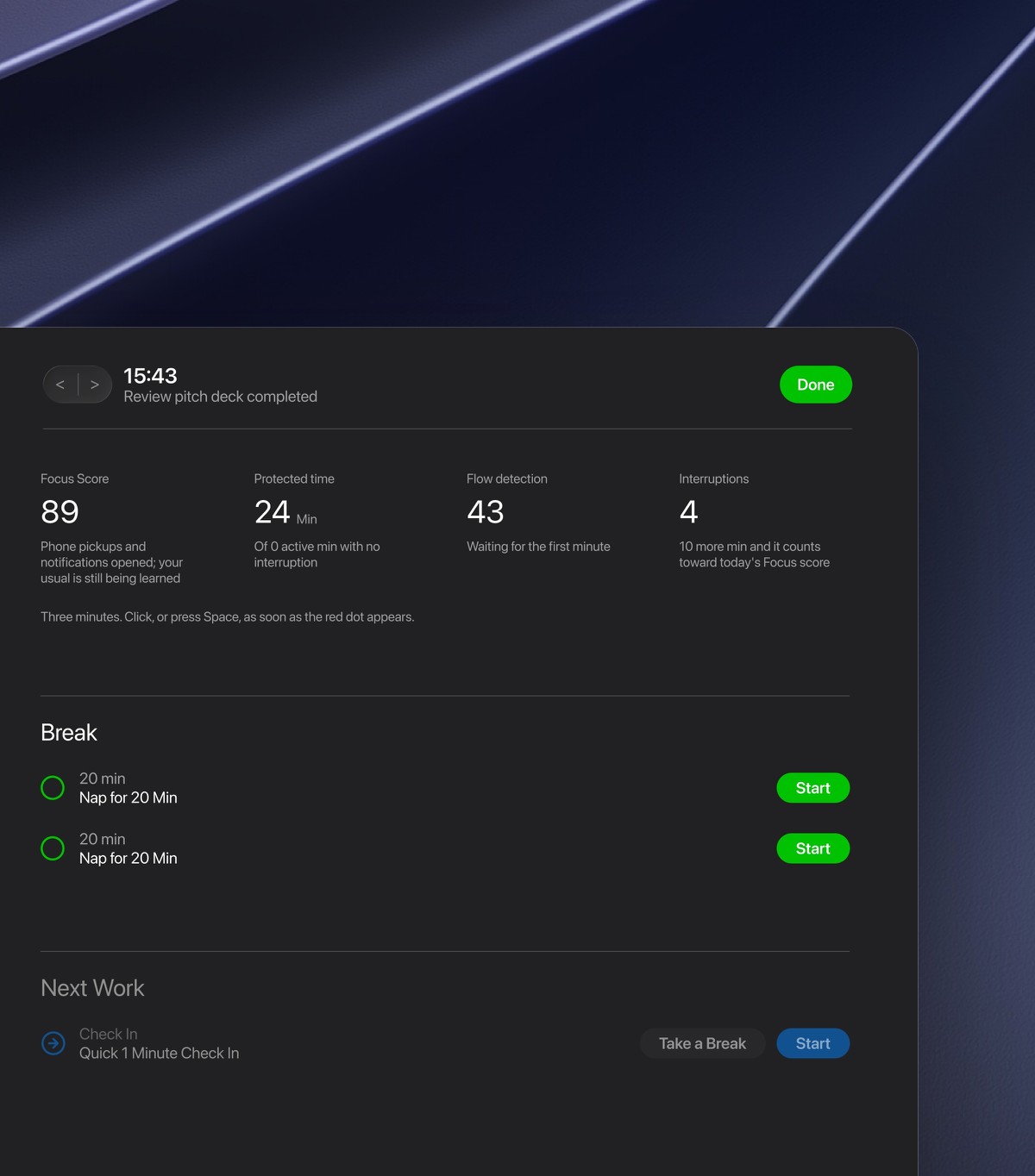
Session Review After every session, see your focus score, protected time and interruptions, plus a break that fits, so each block teaches you how you work.
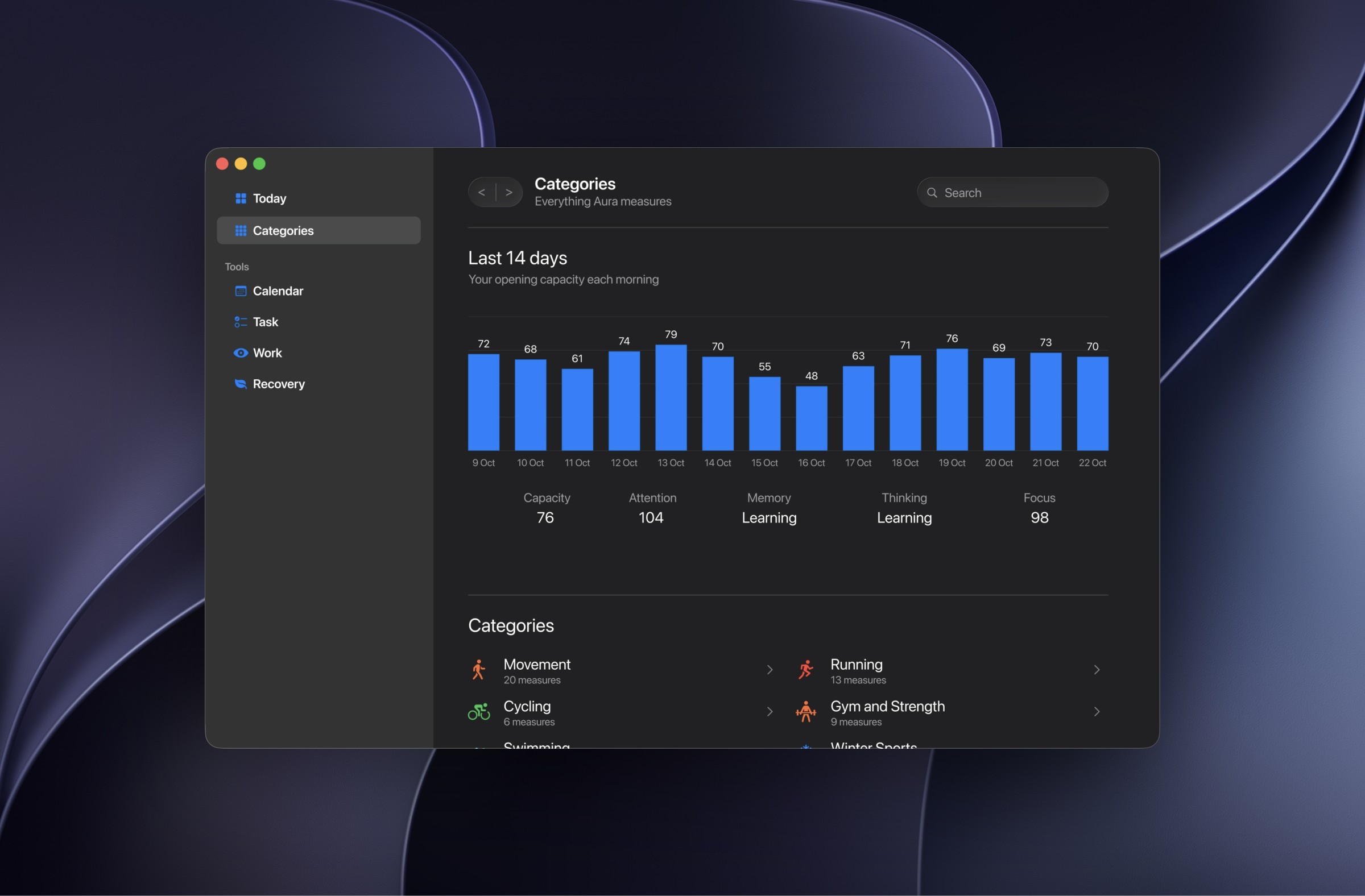
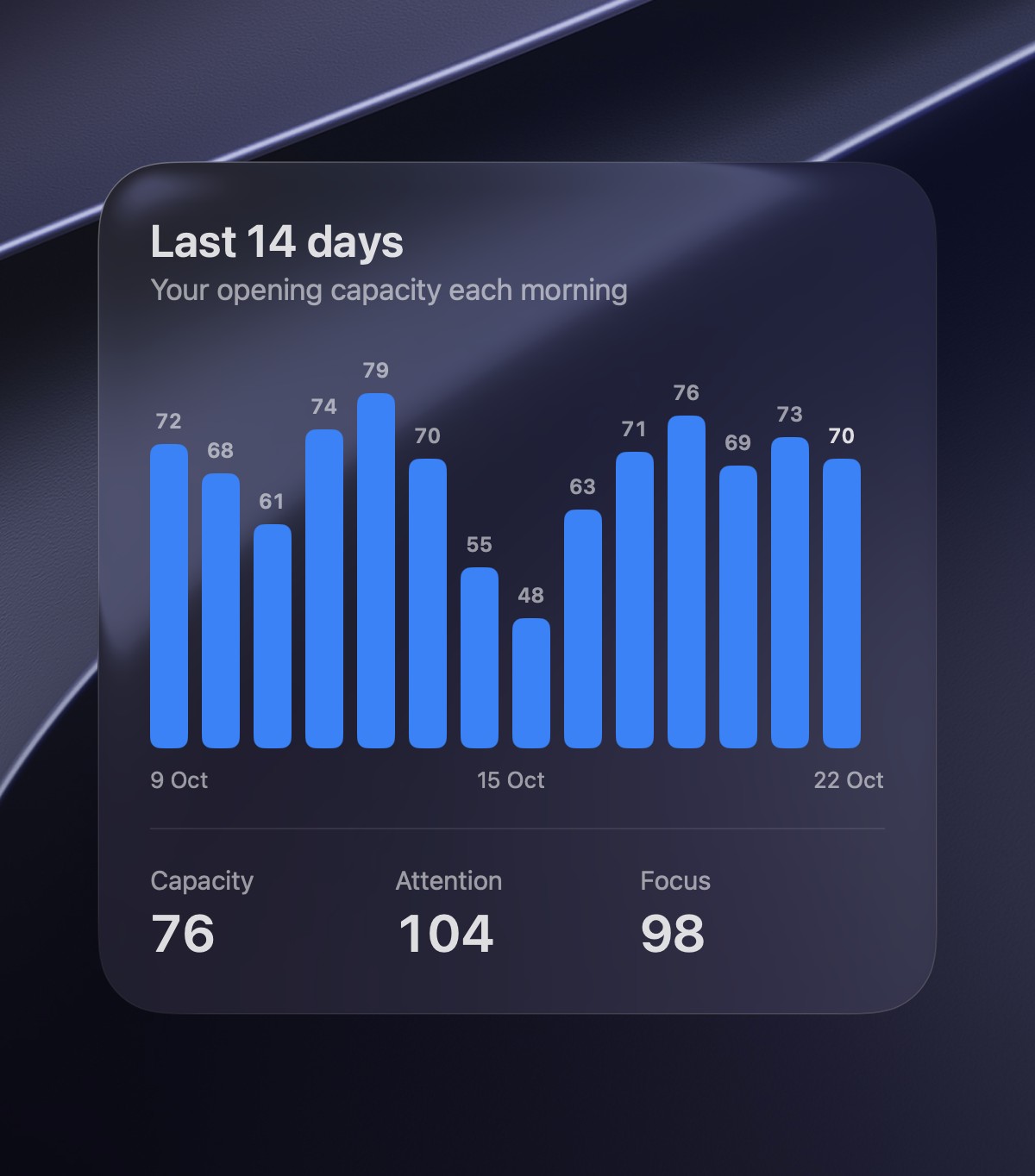
Capacity History See your opening capacity for the last 14 days beside attention, memory, thinking and focus, so good and bad stretches stand out.
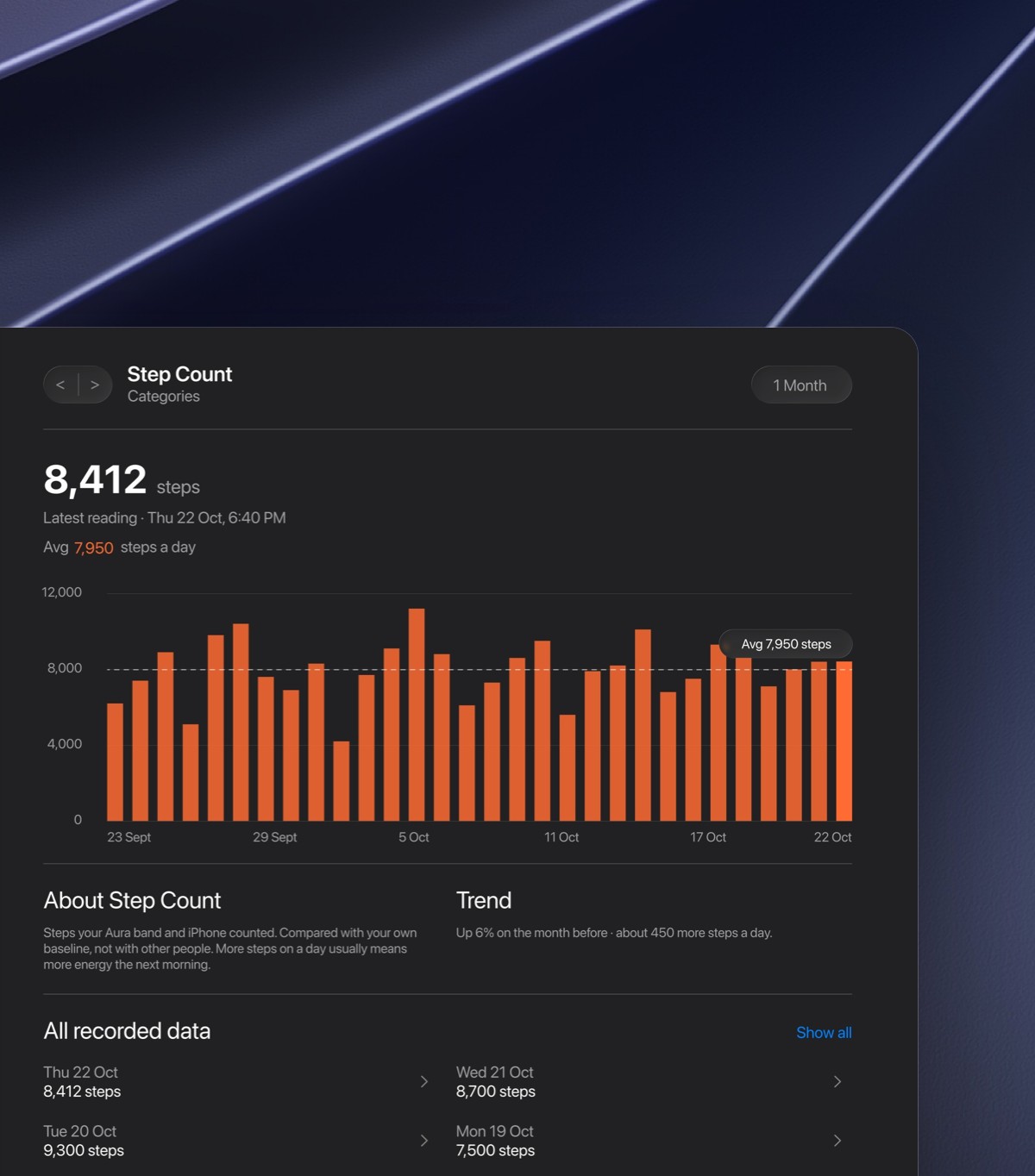
Health Categories Over 340 health signals from your band, grouped by category, each with its own chart, so nothing about your body stays hidden.
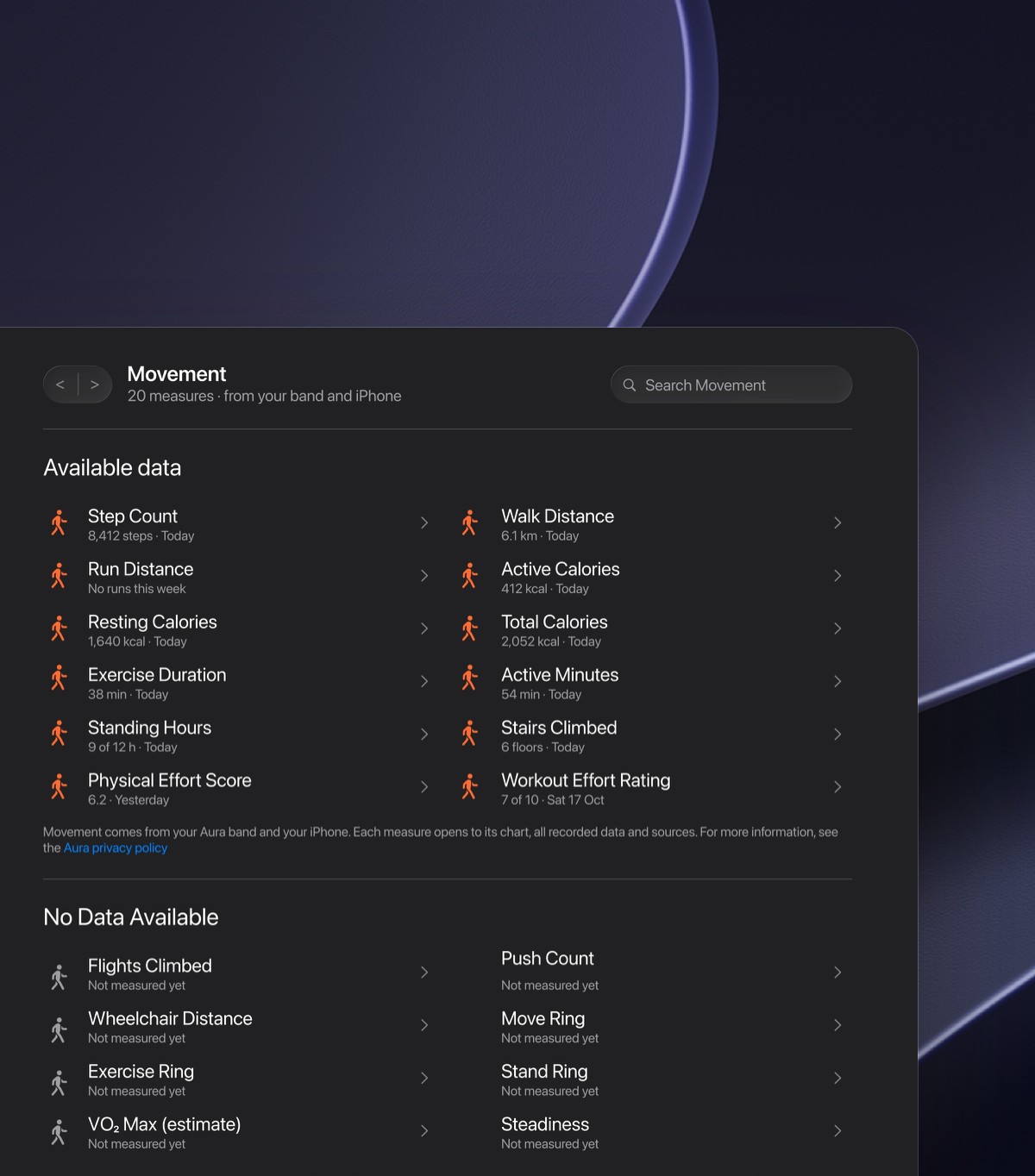
Category Pages Open any category to see every measure from your band and iPhone, what's tracked today and what isn't yet, all in one place.
Trends Every measure gets its own chart, average and monthly trend, compared with your own baseline rather than with other people.
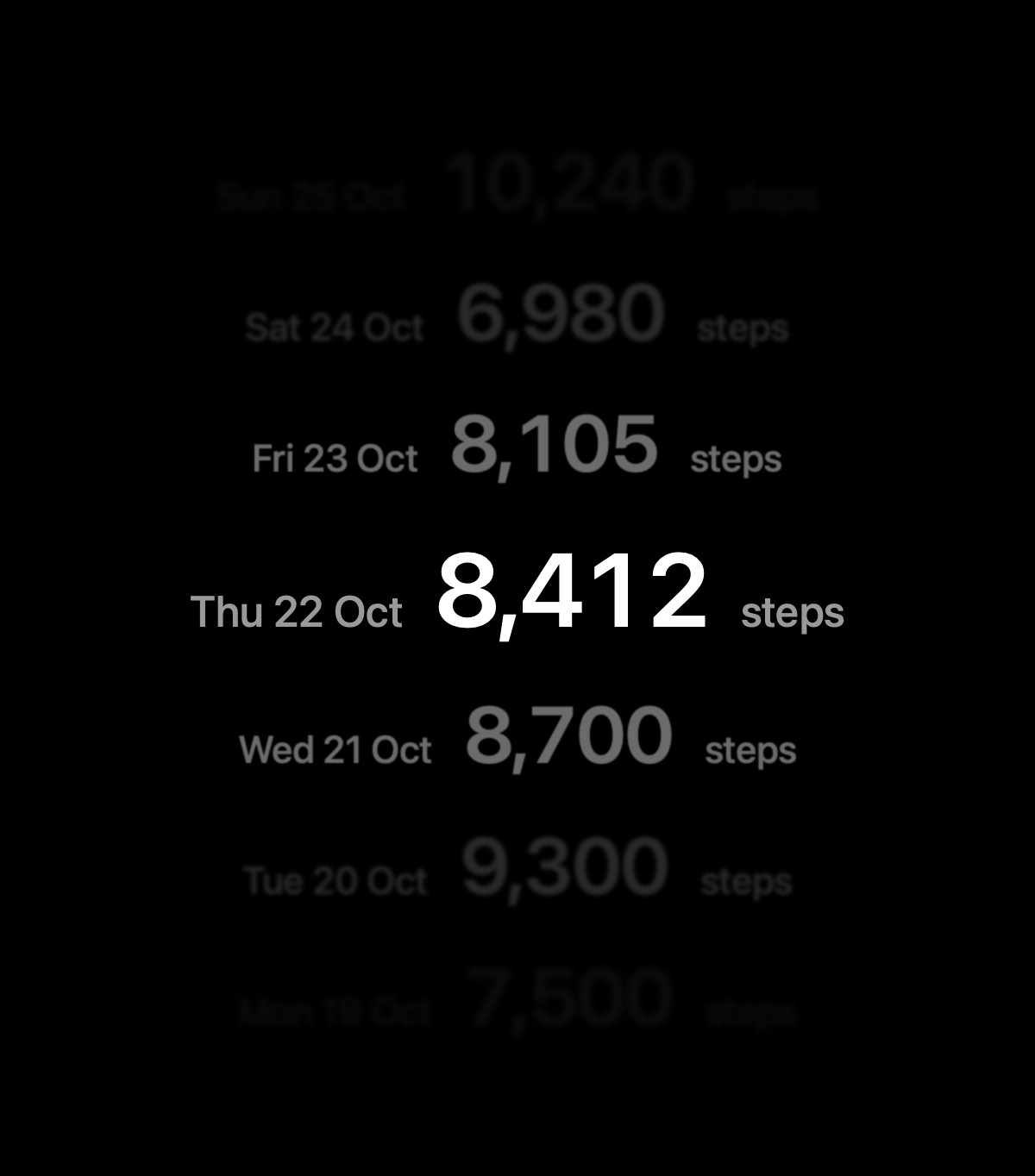
All Your Data Every reading you've recorded, newest first, with its source and the units you prefer, so your data is always yours to check.
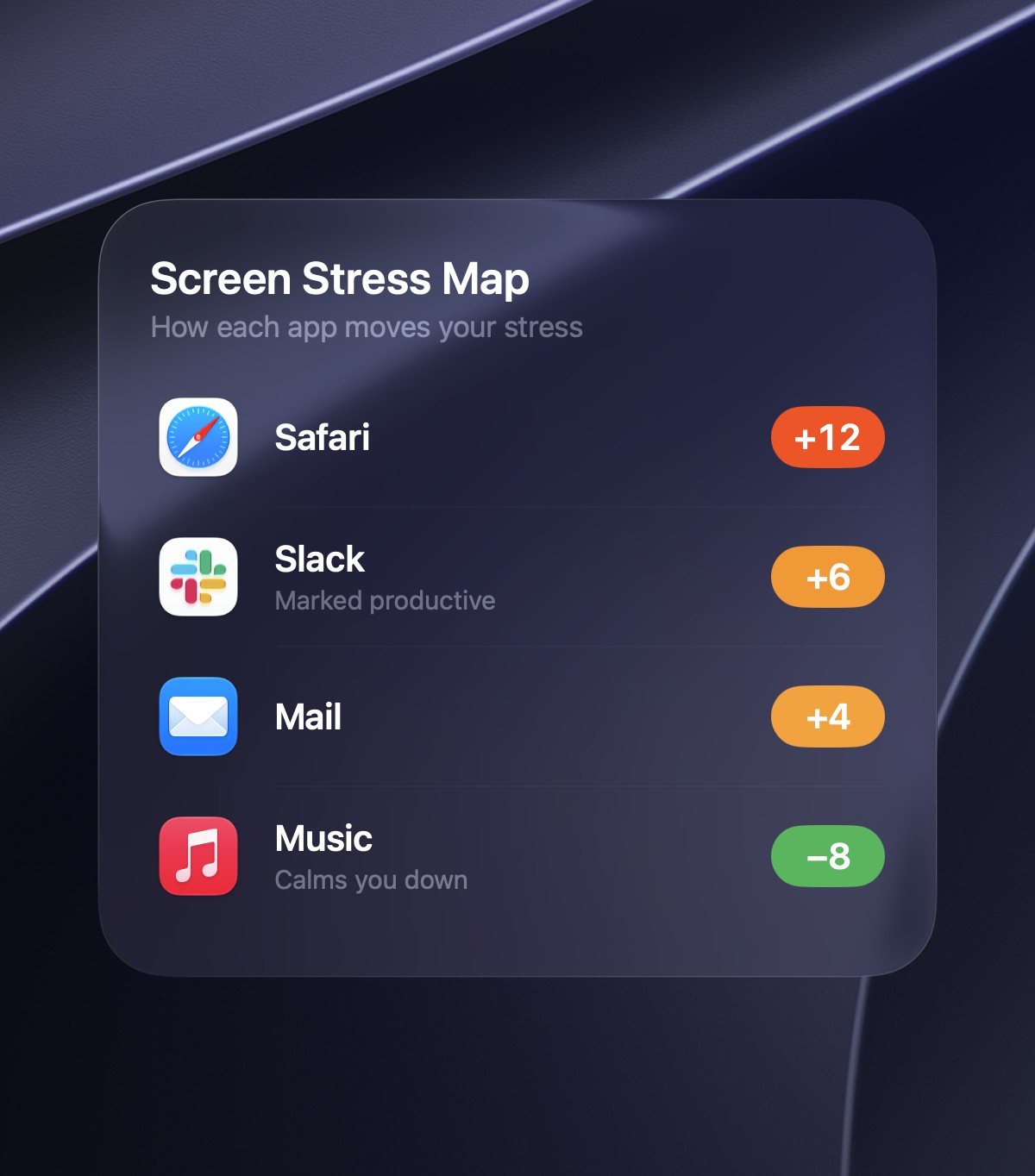
Stress-App Finder Clarus links your band's stress readings to the apps you use, so you know which ones to limit and which ones to keep.
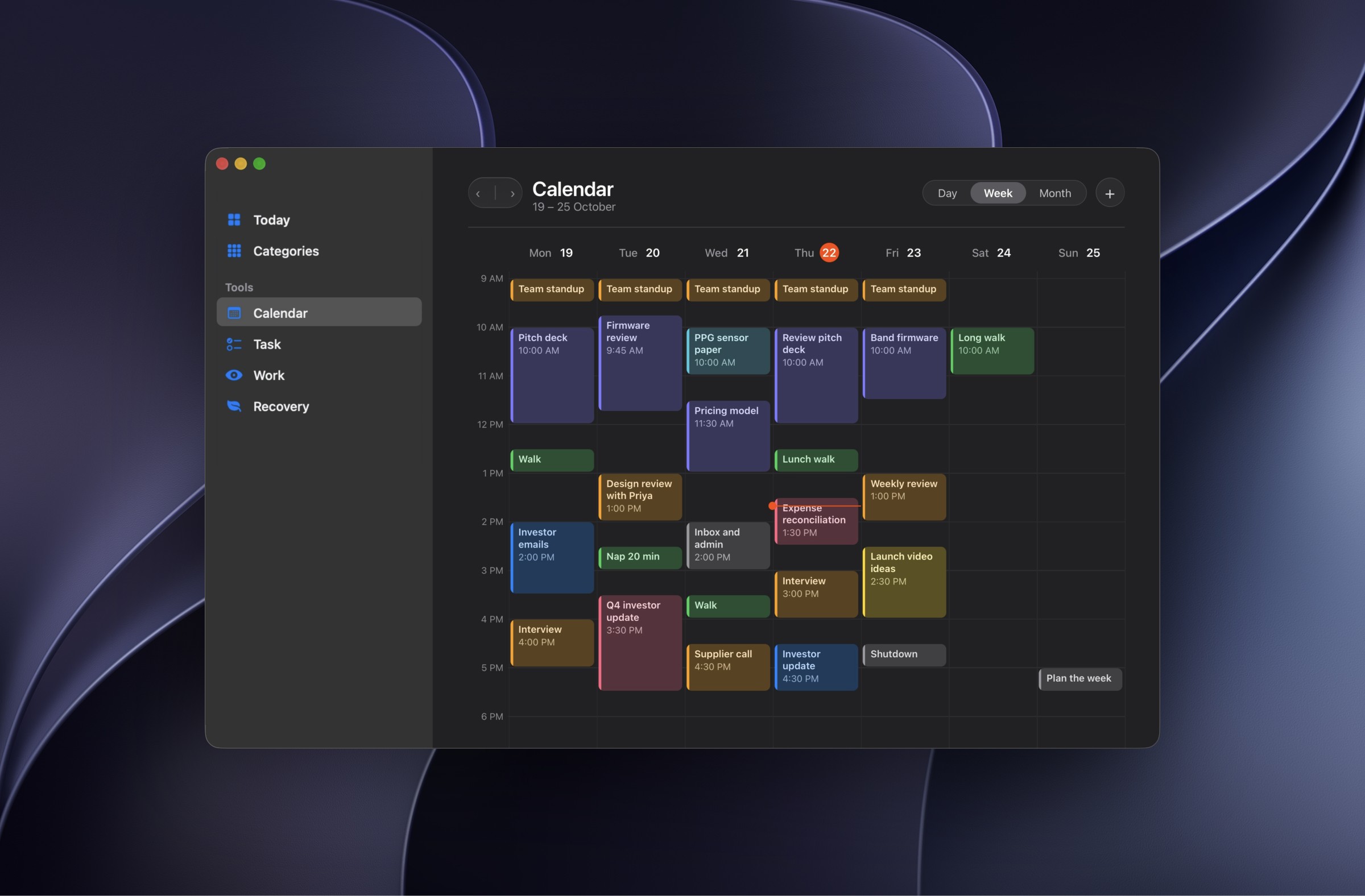
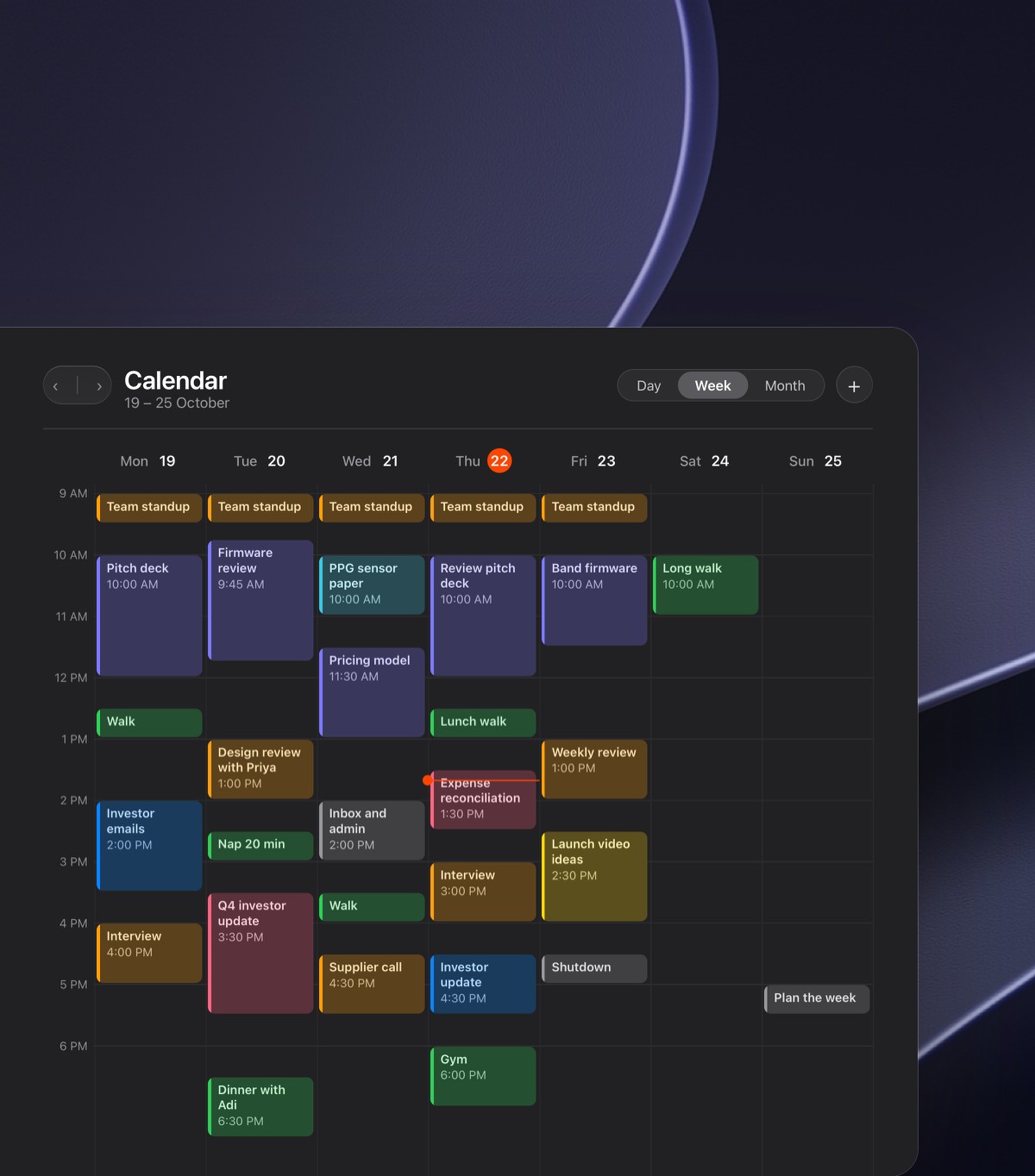
Smart Calendar Your Apple Calendar syncs in and every event is sorted as a meeting, desk work or recovery, so you see how heavy your week really is.
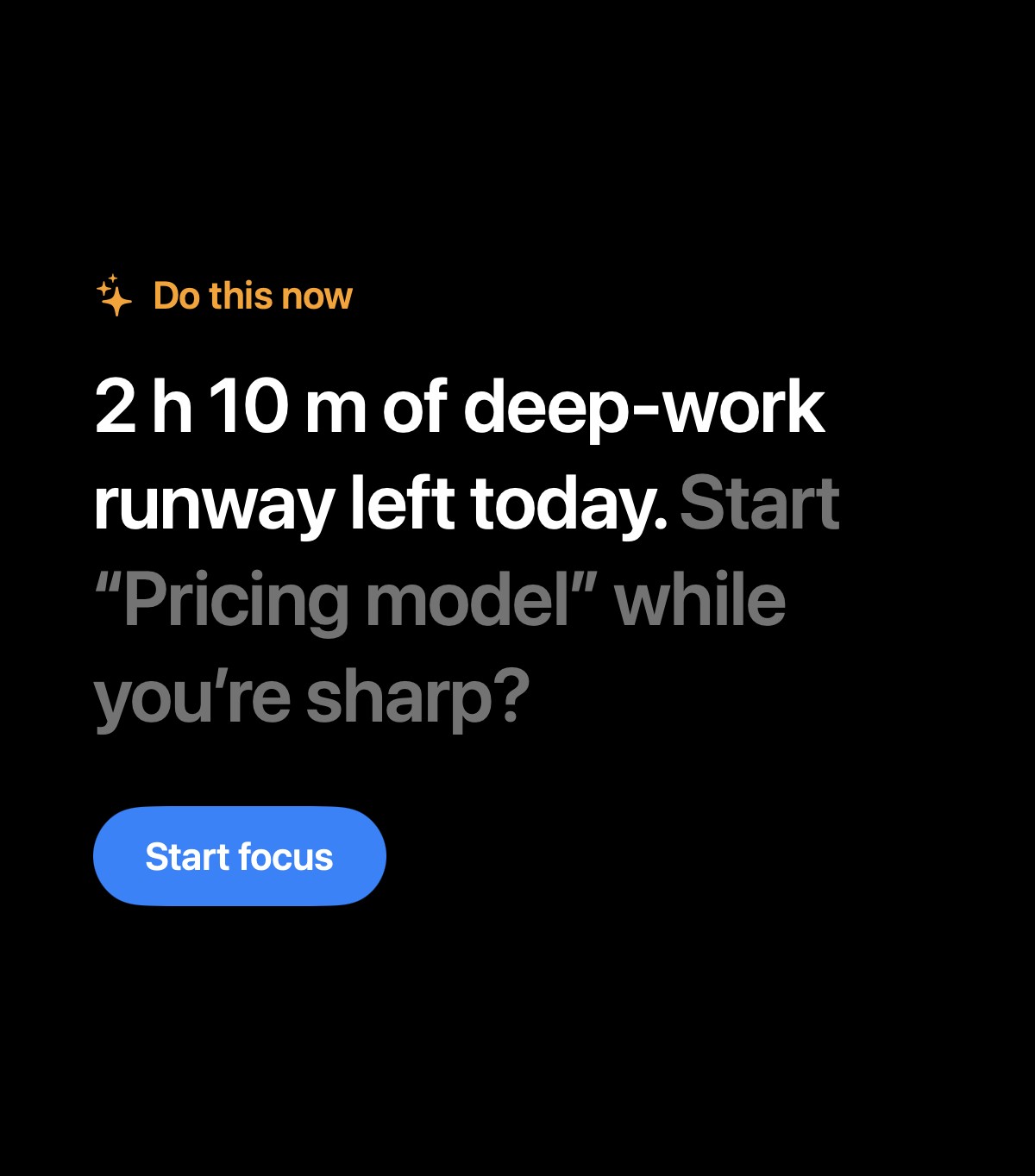
Do This Now One sentence at the top of your calendar with the single most useful step and one button to take it, so you always know what's next.
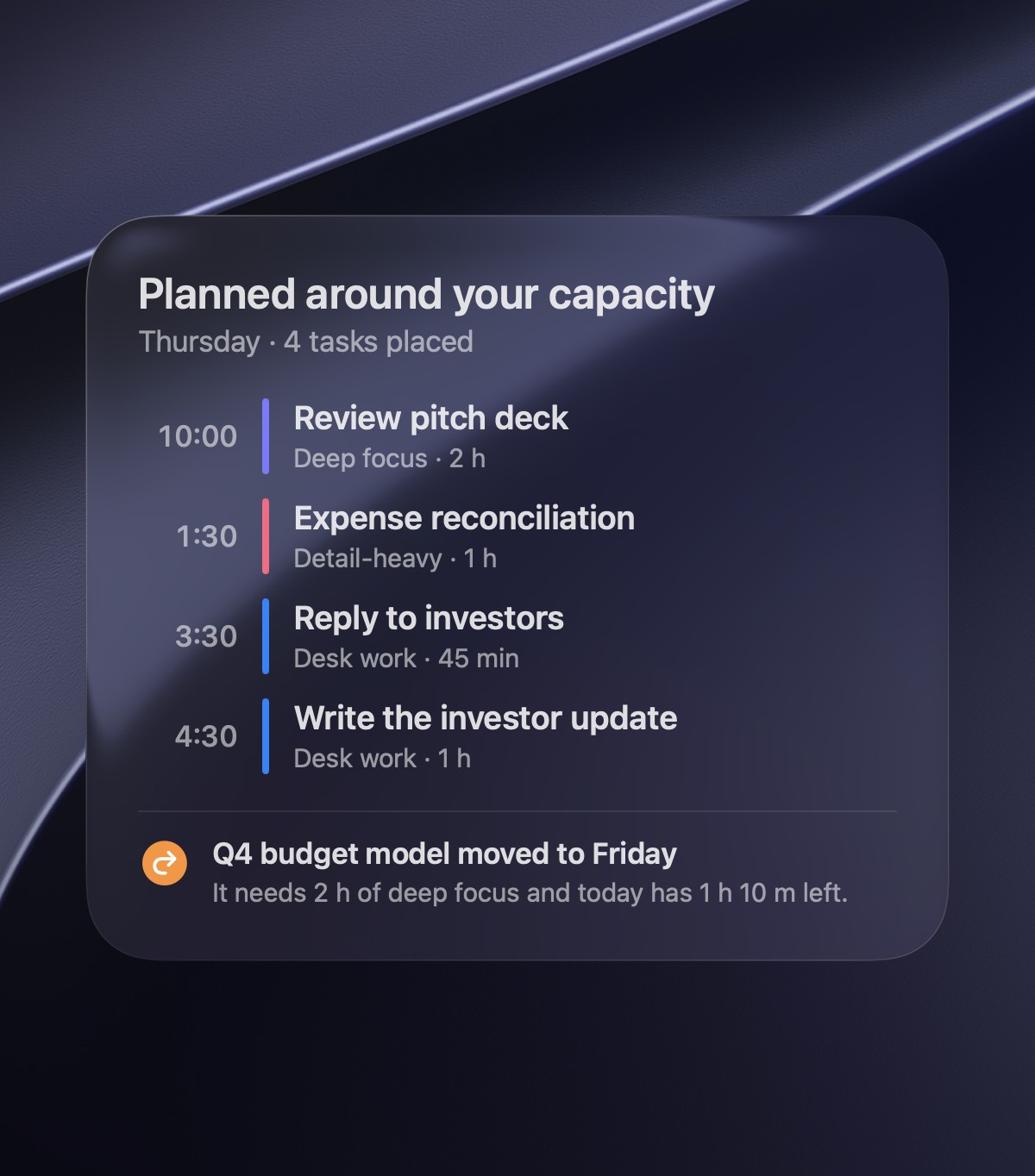
Auto Allocation After your morning check, Clarus fits tasks into your calendar by capacity, and explains, in plain words, anything that doesn't fit.
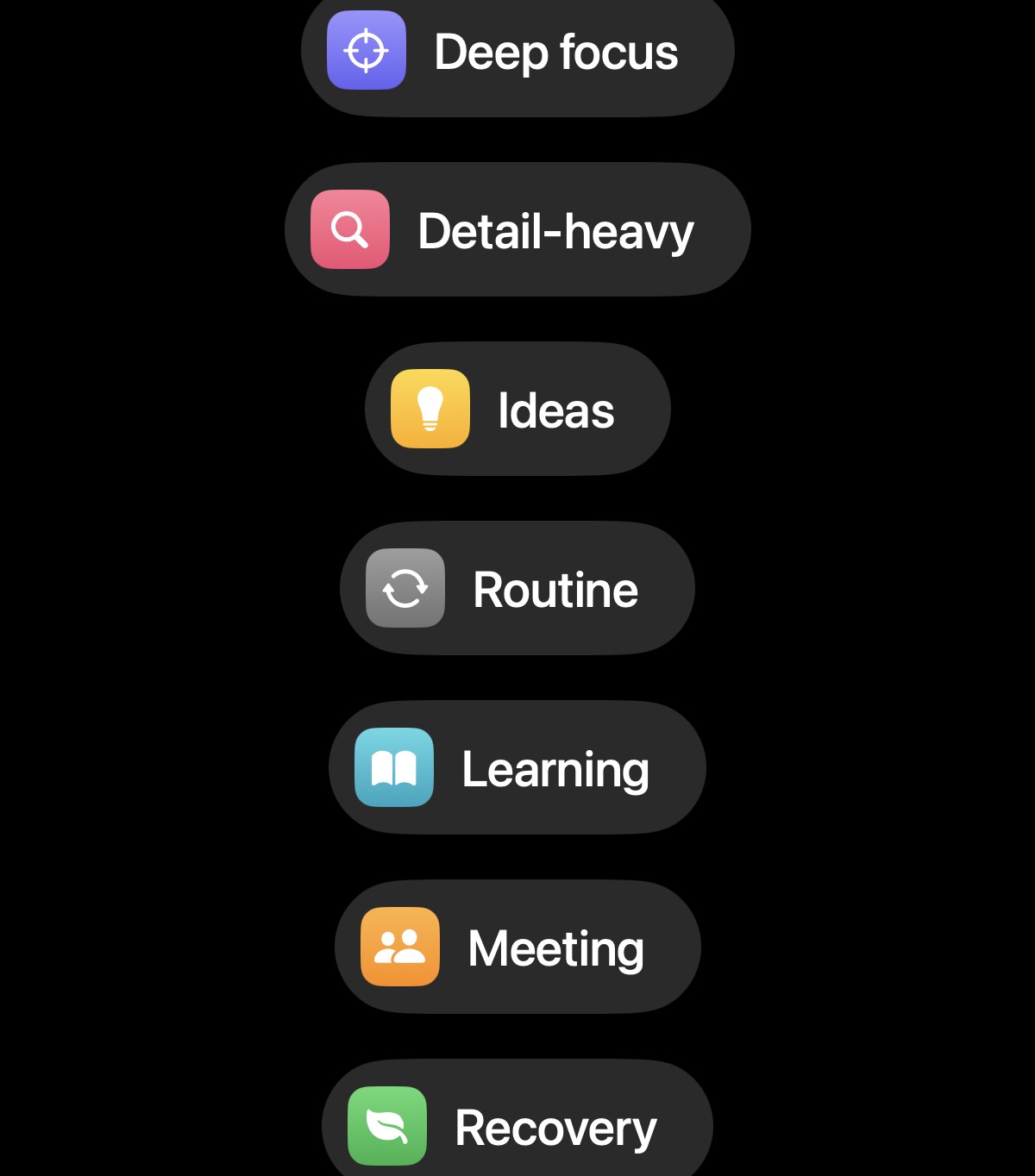
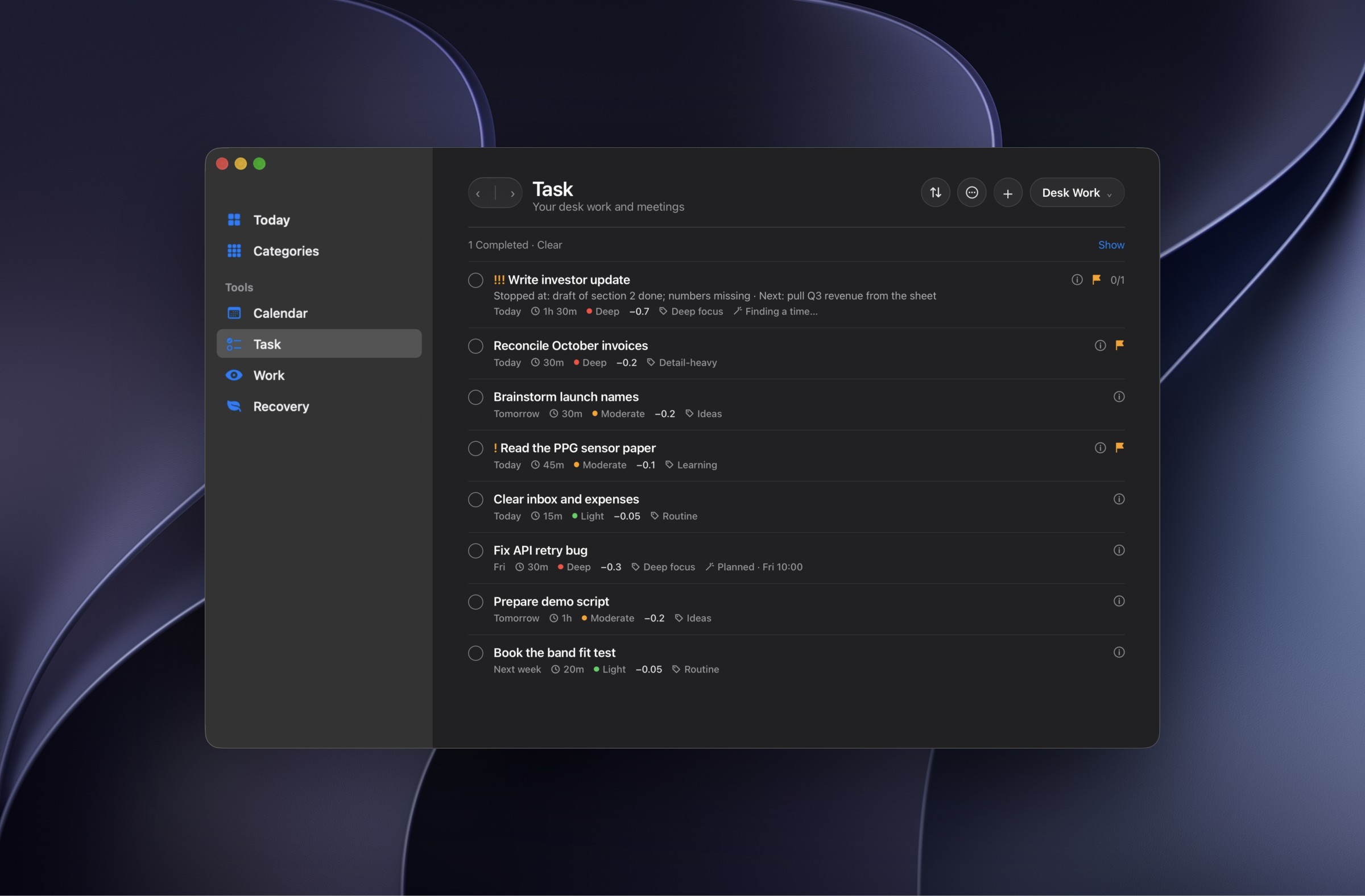
Work Types Tag blocks as deep focus, detail-heavy, ideas, routine or learning, so Clarus can match each one to the state you're in.
One-Tap Reschedule Move any block in a single tap when plans change, and Clarus finds a slot that still fits the energy you have left.
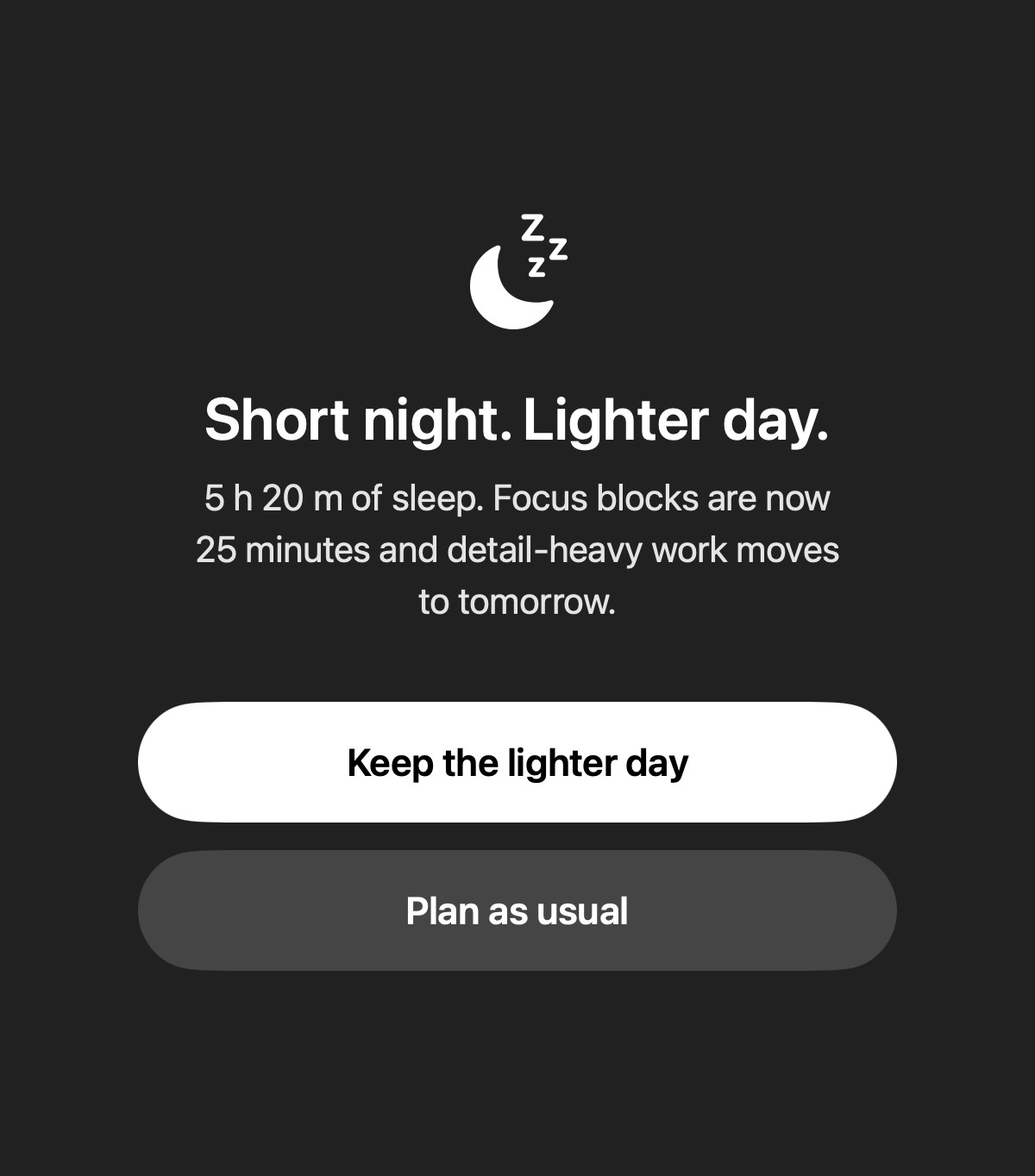
Tired-Day Protection After a short night, a long day or a heavy week, Clarus shortens focus blocks and offers to move demanding work, so you don't run on empty.
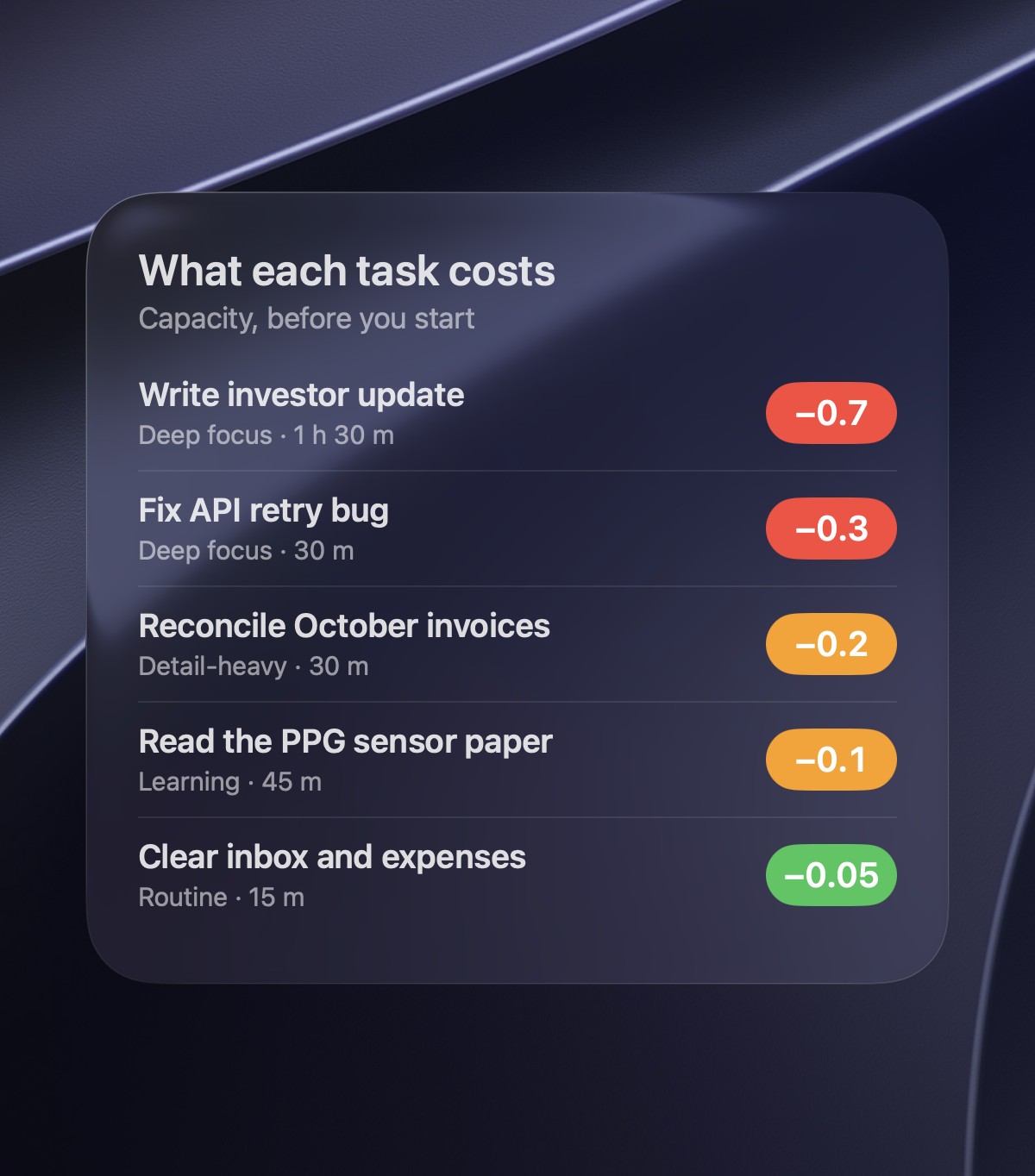
Task Cost Every task shows what it will cost you, so you stop overloading your day and pick work that matches the energy you have left.
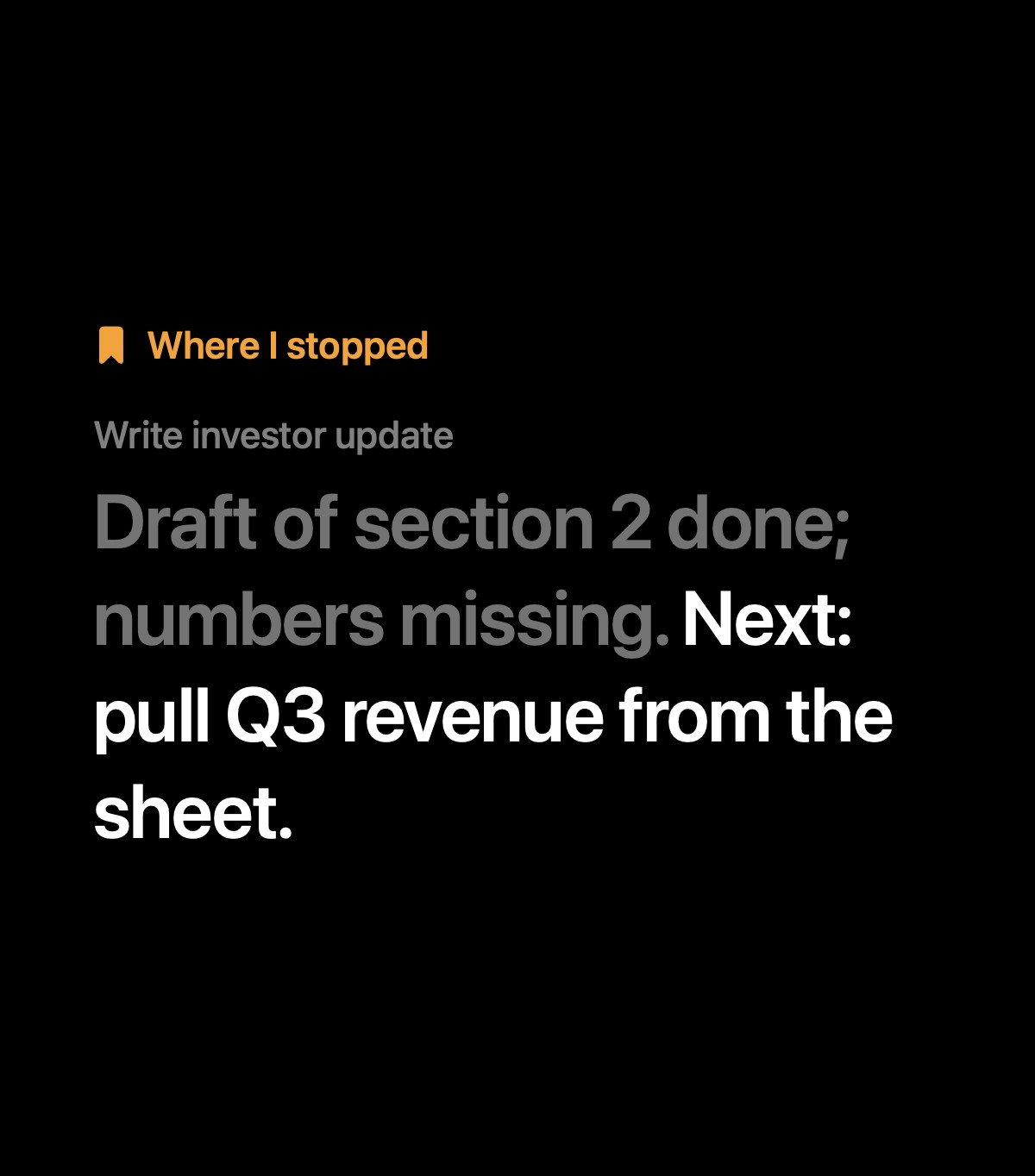
Where I Stopped Leave a one-line note when you pause a task, and it greets you with your next step the moment you come back.
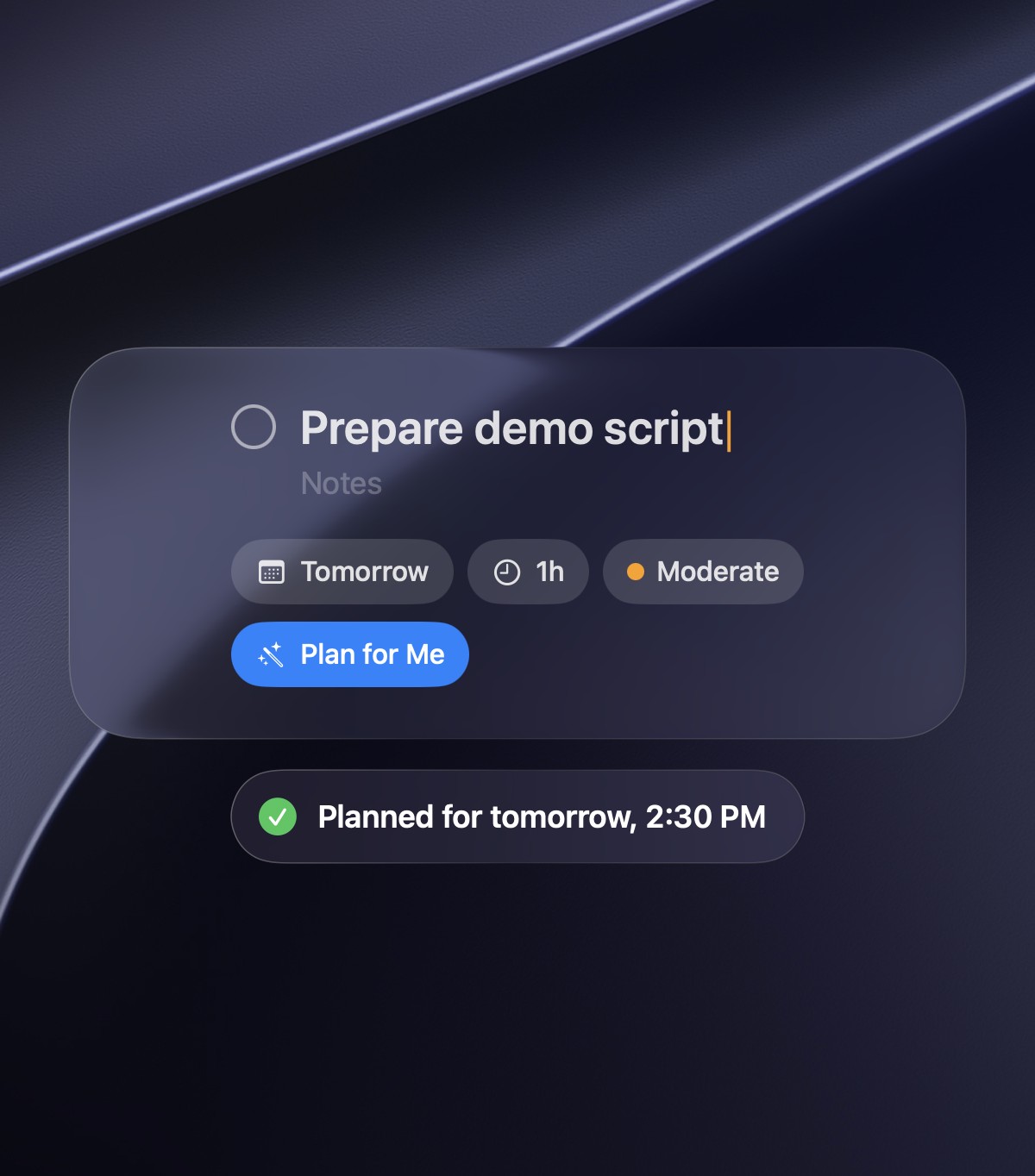
Plan for Me Add a task with its length and how demanding it is, tap Plan for Me, and Clarus finds a slot in your calendar that fits your energy.
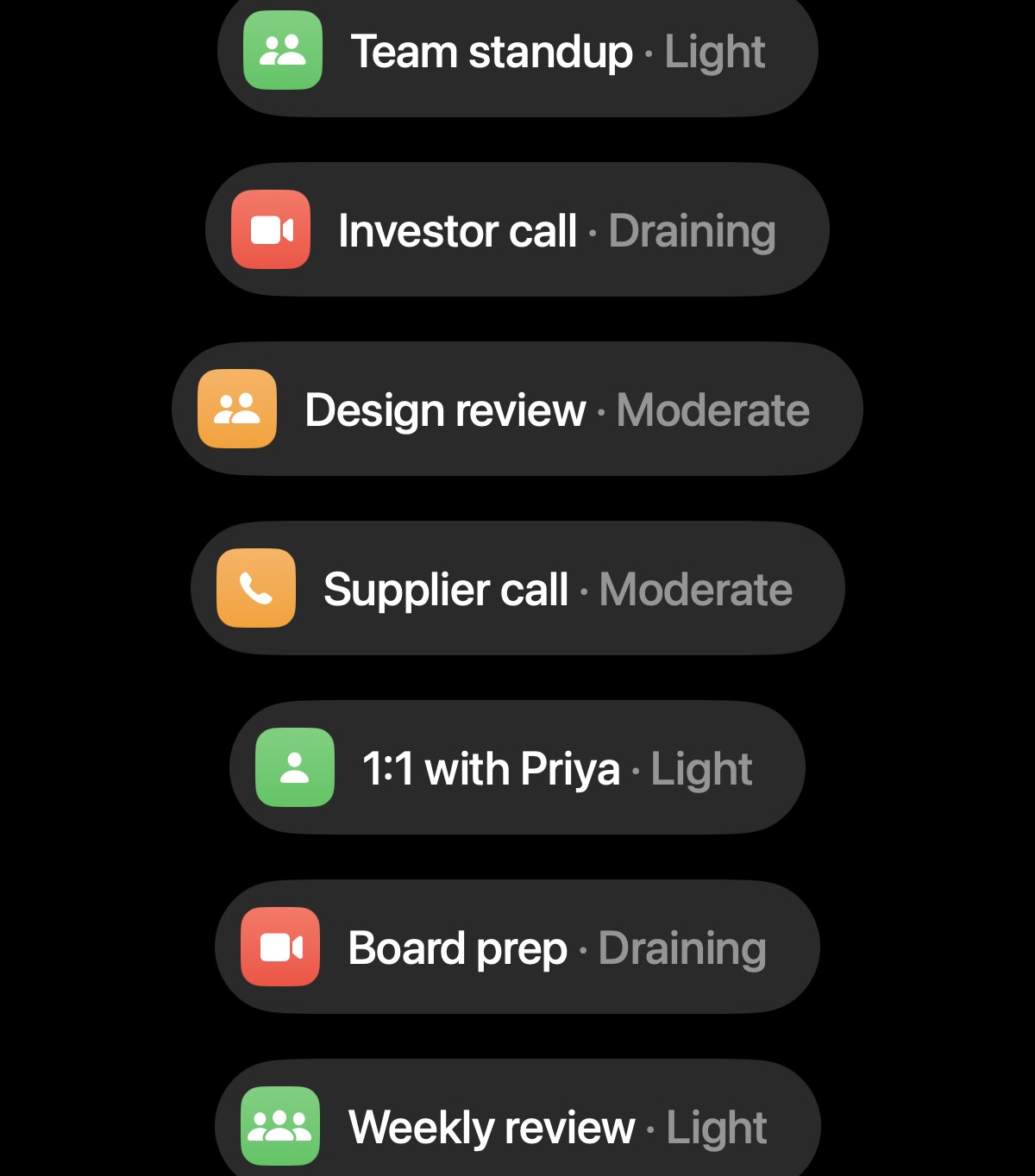
Meetings Plan meetings beside your tasks and mark how draining each one is, so Clarus counts their real cost before your day fills up.
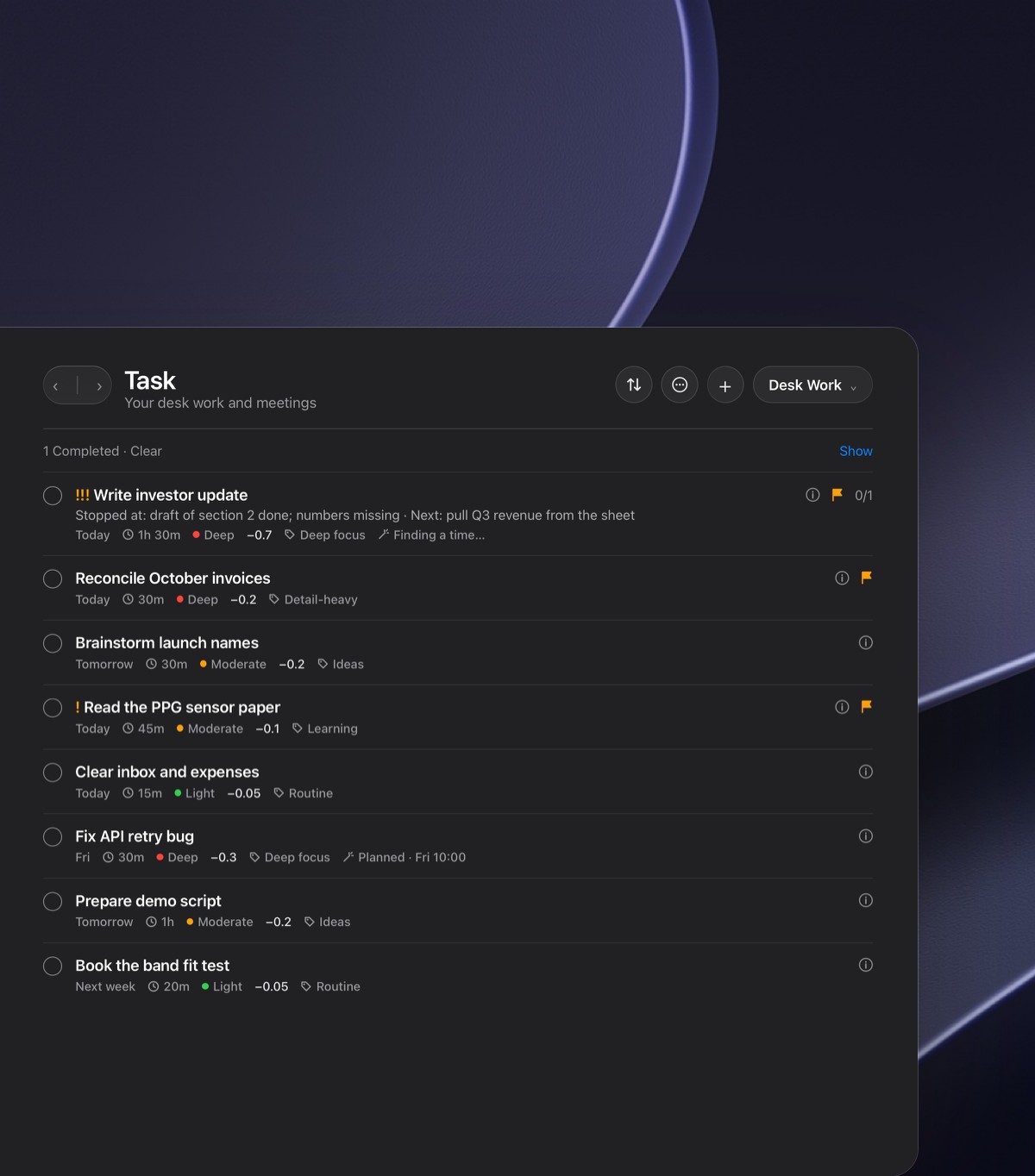
One Clear List Desk work and meetings live in one list with their length, energy and cost, flagged and sorted so what matters most stays on top.
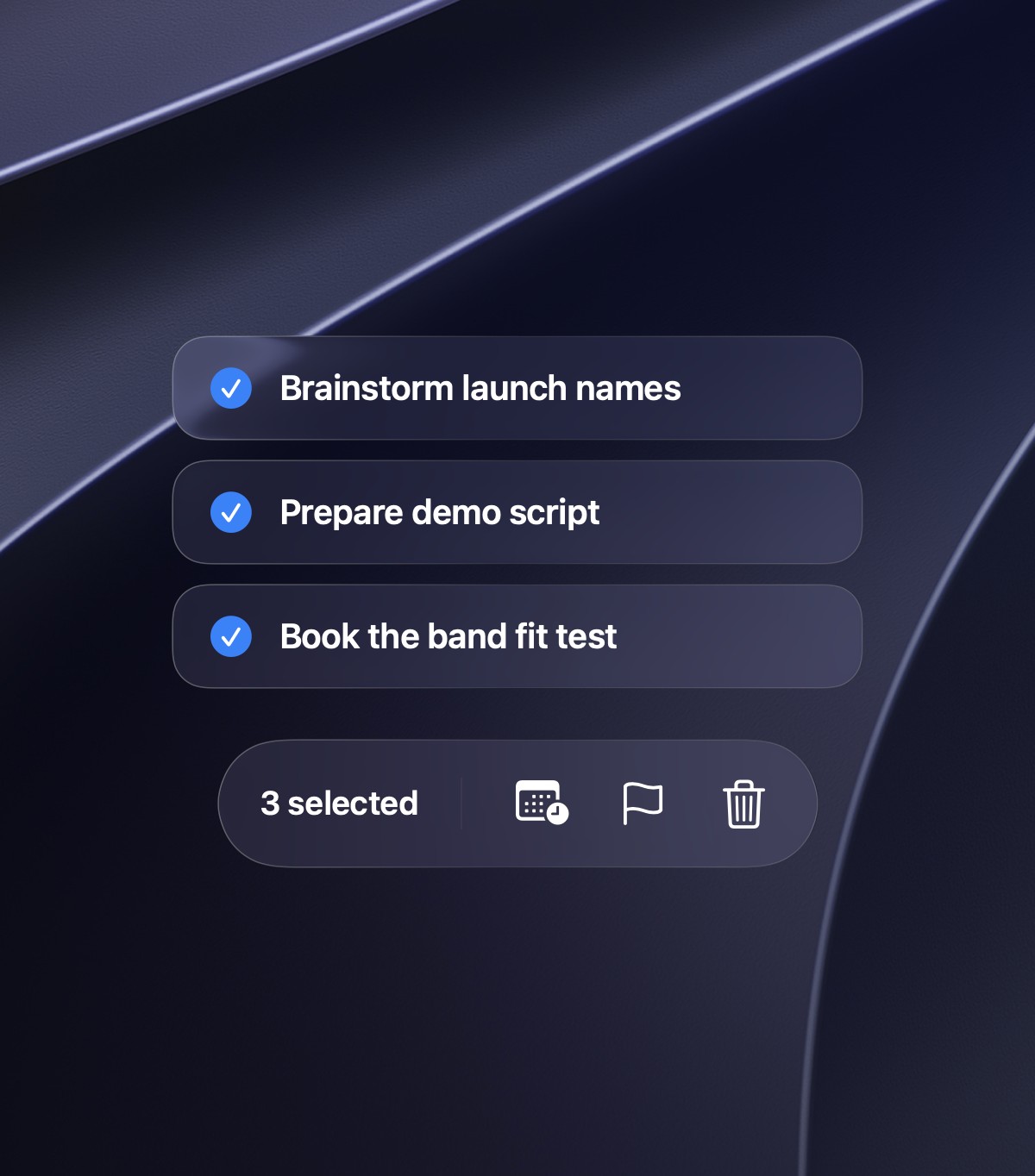
Batch Actions Select several tasks at once and move, flag or clear them together, so reshaping a busy week takes a few clicks, not an afternoon.
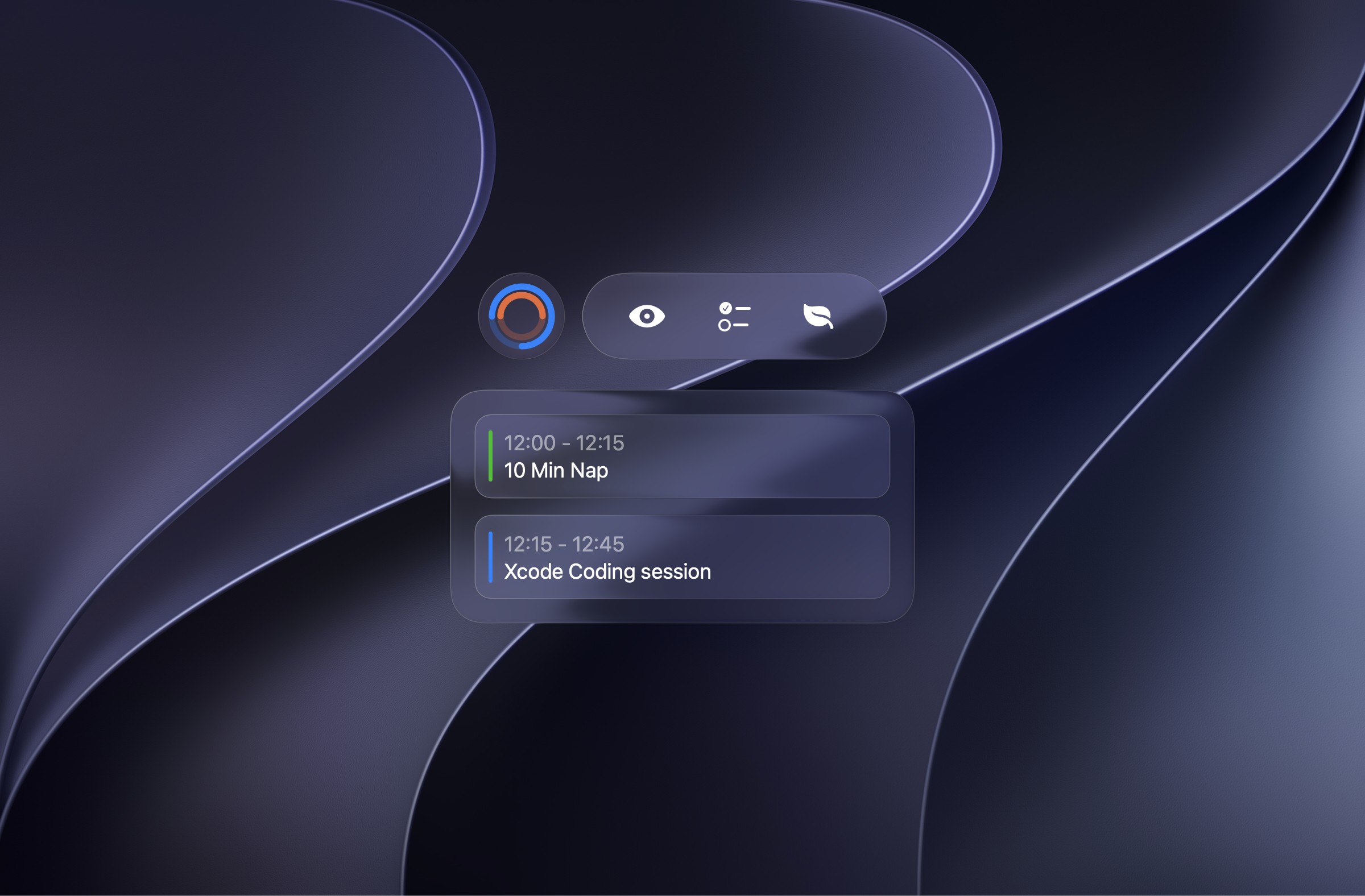
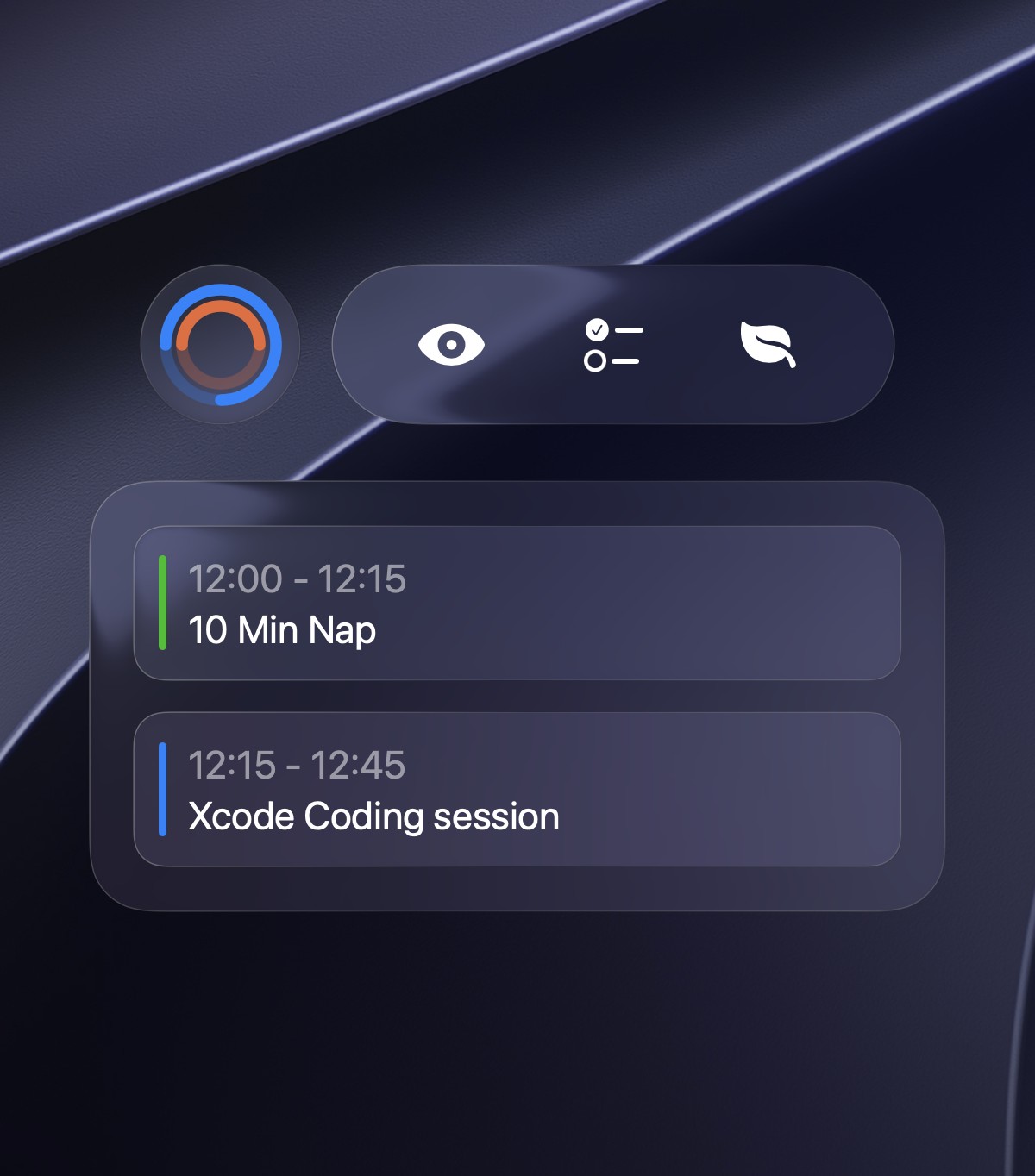
Mini Window A small floating window keeps your capacity ring, your next blocks and your tools one glance away, without opening the full app.
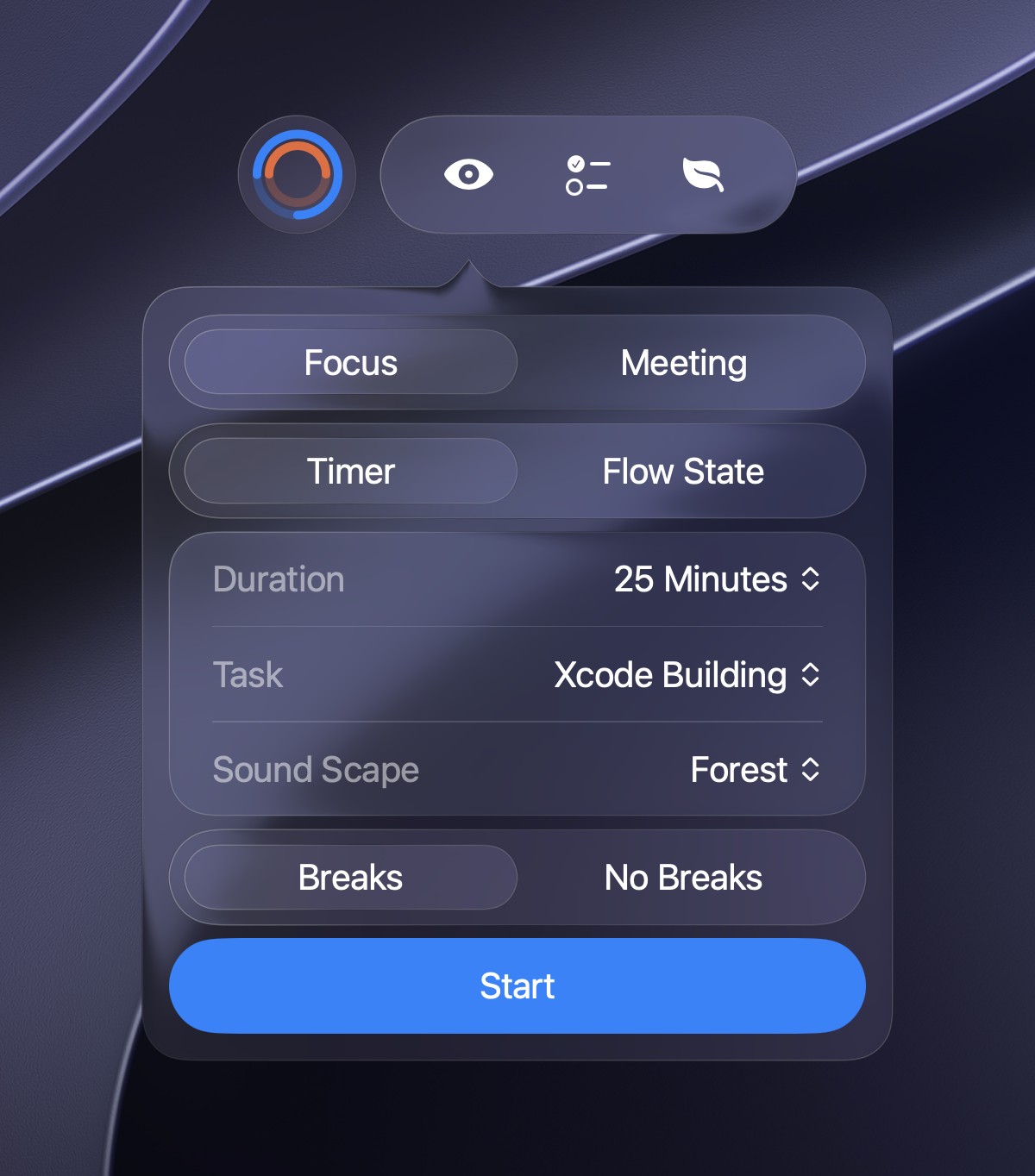
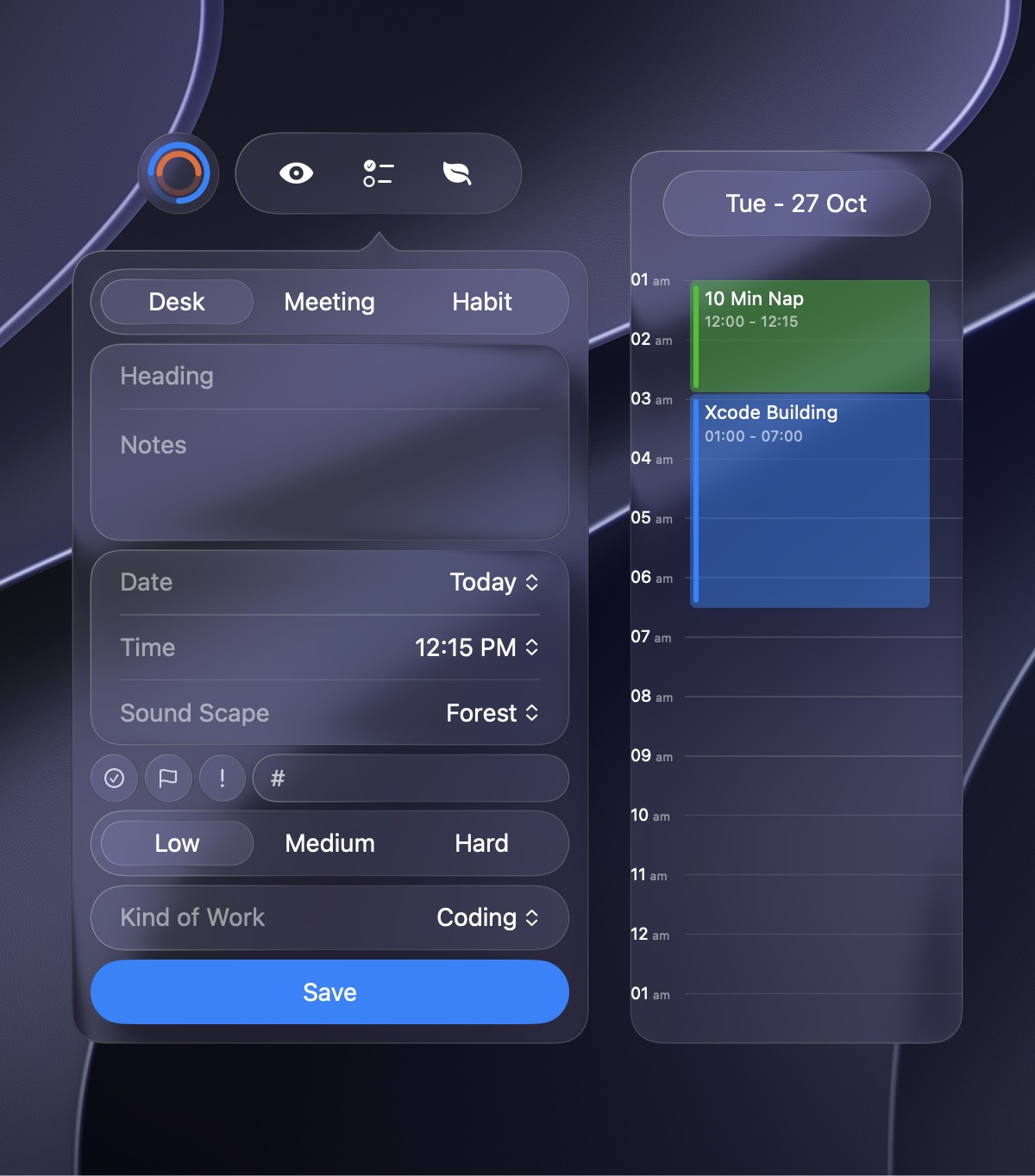
Start Focus Pick focus or meeting, timer or flow state, your task, a soundscape and breaks, then press Start, all from the mini window.
Quick Add Add a task, meeting or habit from anywhere, set how demanding it is, and see where it sits on your day beside it.
Stand Breaks After a long stretch without a pause, the mini window suggests a quick stand, so you keep your energy up through the day.
Completed or Reschedule When you end a block, mark it completed or reschedule it for a new time in your calendar, right from the mini window.
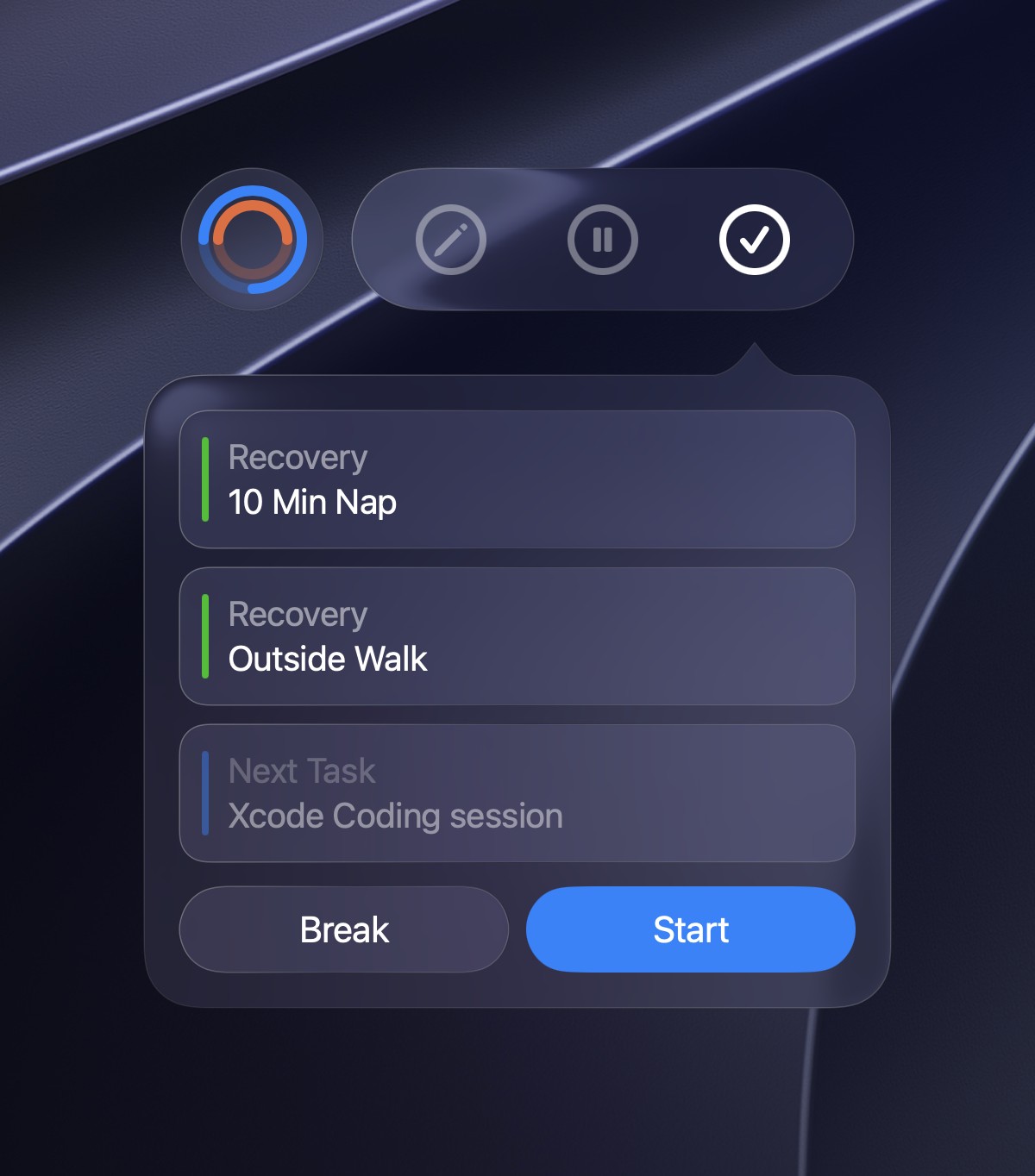
What's Next A finished block offers a nap or an outside walk before your next task, so you choose whether to take a break or start.
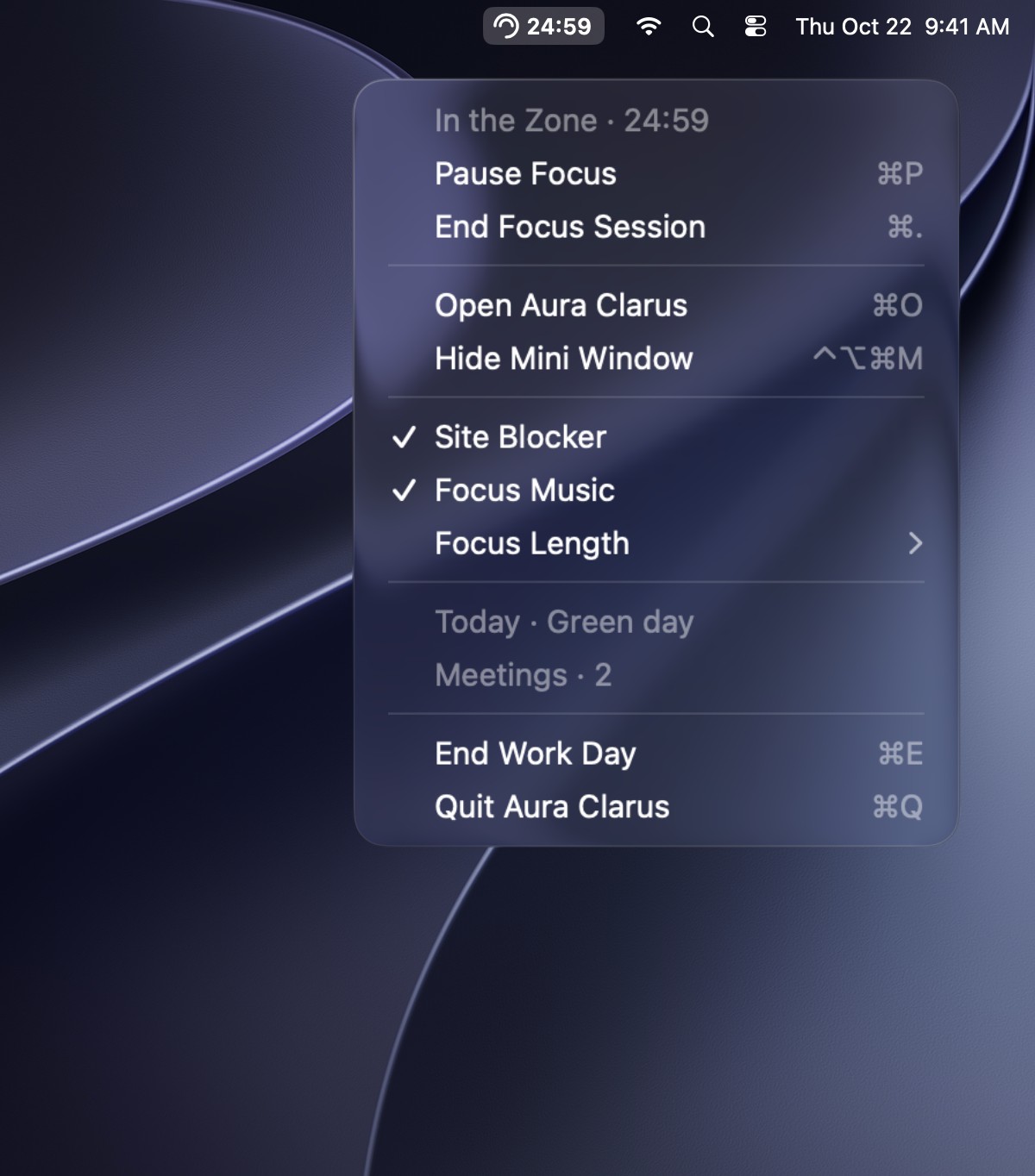
Menu Bar Start, pause or end a focus session, block distractions and end your work day right from the menu bar, without opening Clarus.
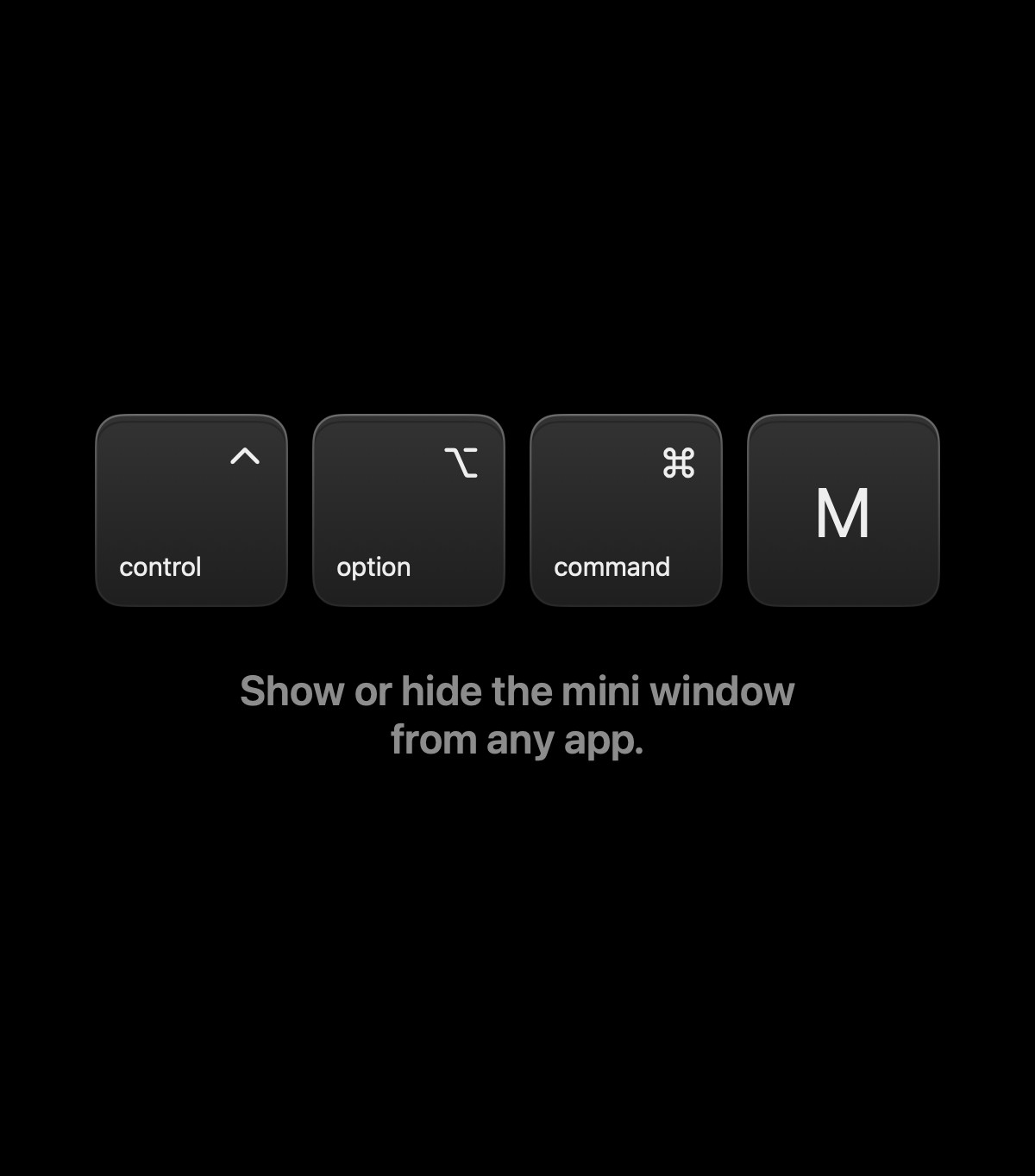
One Shortcut Press Control-Option-Command-M from any app to show or hide the mini window, so your plan is never more than a keystroke away.
Coming Soon to macOS
Clarus Health Desktop is currently in development.